OBD2 tools on OBD2shop.co.uk https://blog.dnevnik.hr/obd2shop
srijeda, 19.03.2025.
PadFlash Tool Software Installation Guide (Windows System)
This detailed walkthrough will teach you how to install and set up the PadFlash Programmer Software on Windows seamlessly.
I. System Requirements & Preparations
Recommended OS: Windows 7 64-bit (for optimal compatibility)
II. Software & Driver Downloads
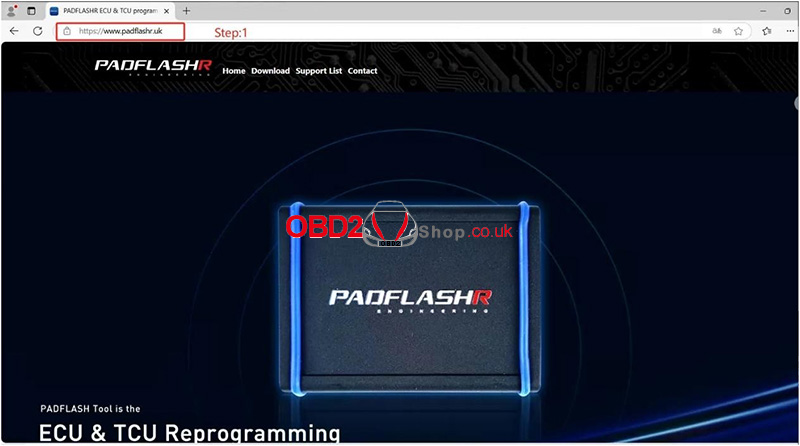
1. Access the Official Website
Visit https://www.padflashr.uk/
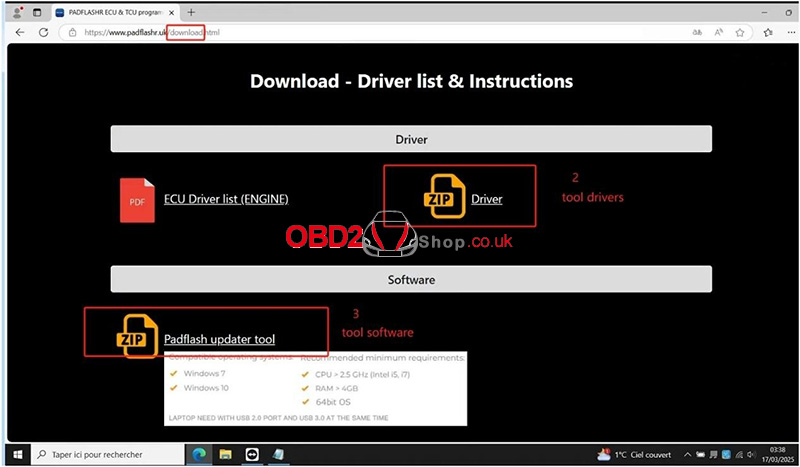
2. Download Drivers
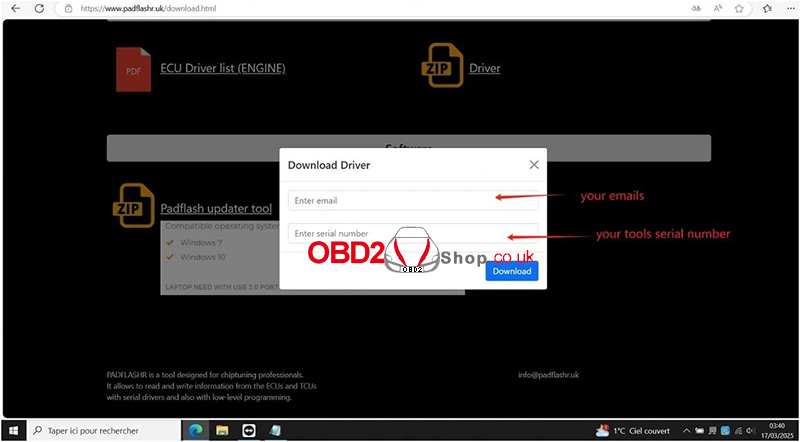
On the download page, provide:
Email address
Tool Serial Number (SN)
Click "Download" to obtain drivers.
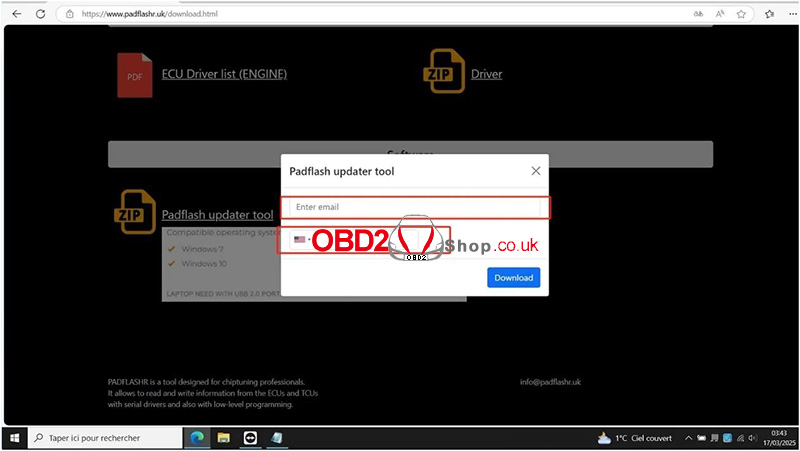
3. Download the PadFlash Updater Tool
On the download page, provide:
Email address
Phone number
Click "Download" to get the Updater tool
III. Software Installation & Registration
1. Install PadFlash Updater
Run the downloaded installer and follow the default setup steps.
A desktop shortcut named PadflashUpdater Setup will be created.
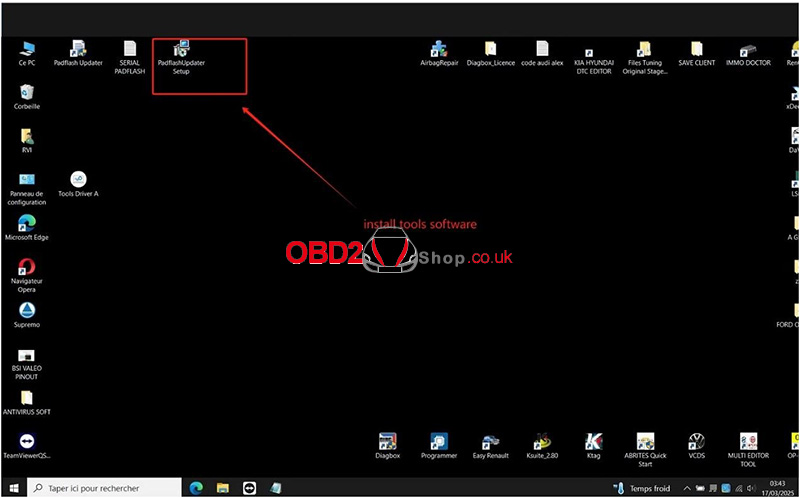
2. Register Your Account
Launch the Updater via the desktop shortcut.
Enter the following details to register:
Email address
Tool Serial Number (SN)
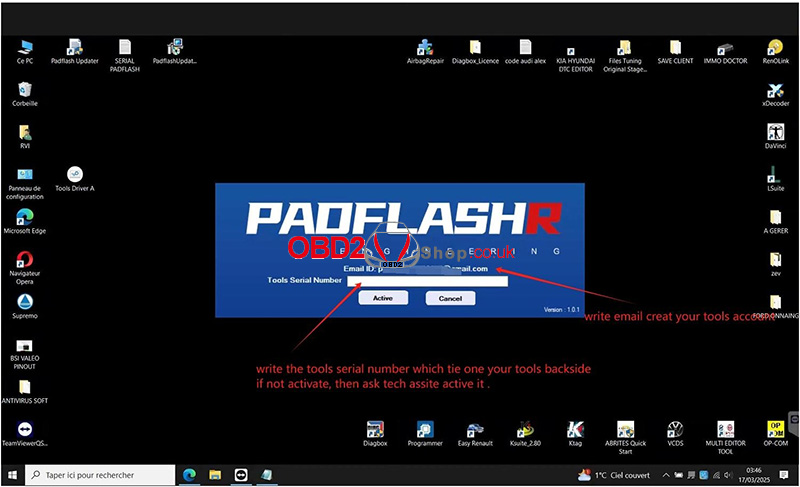
3. Initialize Updates
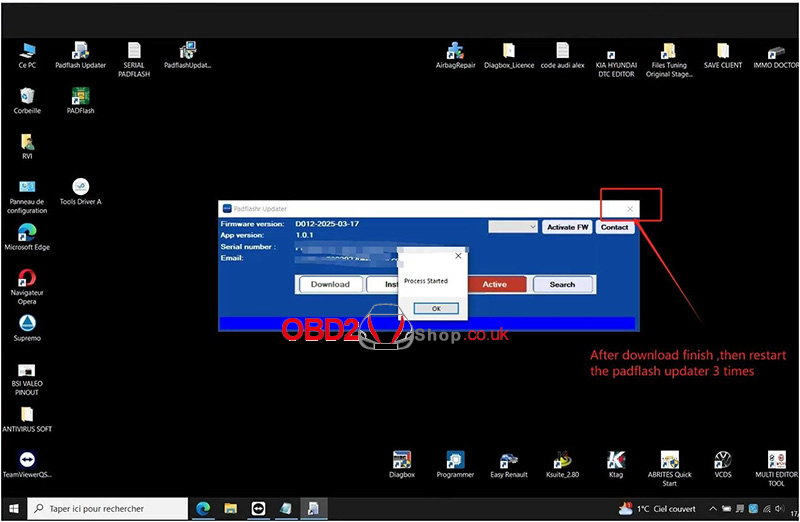
Restart the PadFlash Updater.
Click Download Update Files and wait for completion.
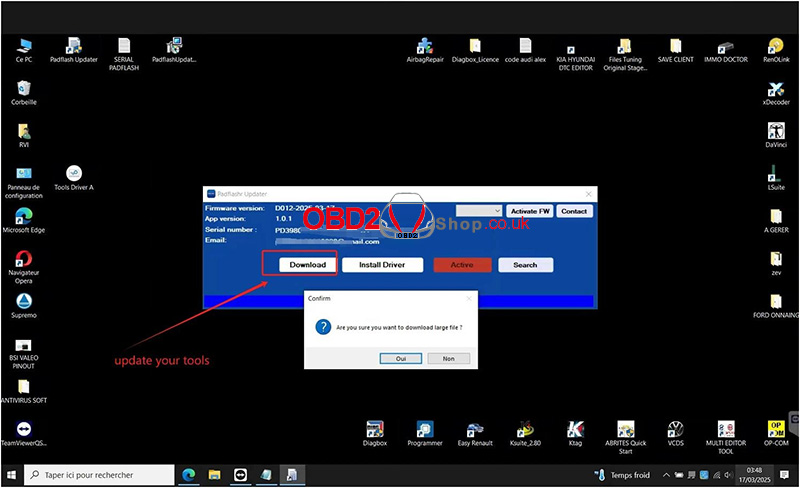
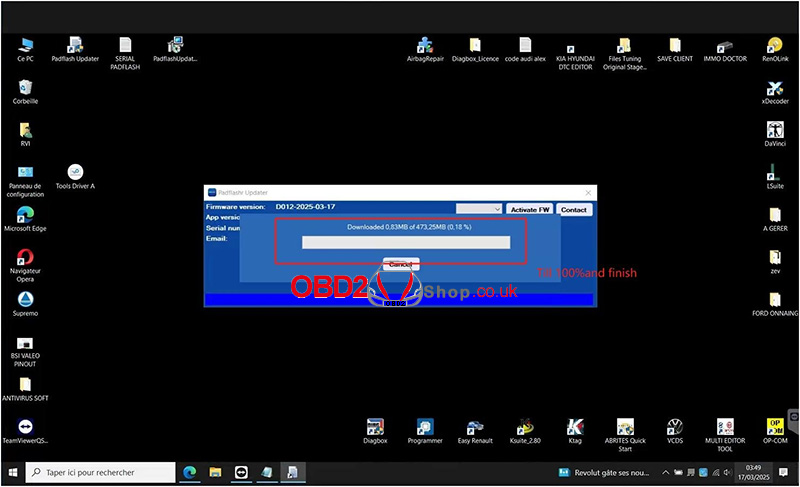
Critical Step: After the download, restart the Updater 3 times.
IV. Hardware Driver Installation
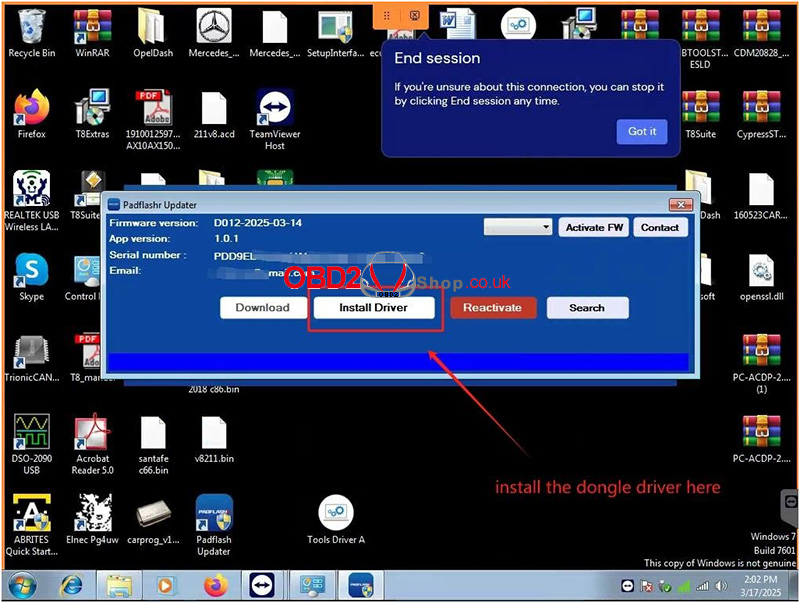
1. Install Dongle Driver
Insert the dongle into a USB port.
Allow the system to detect it, then install the driver automatically.
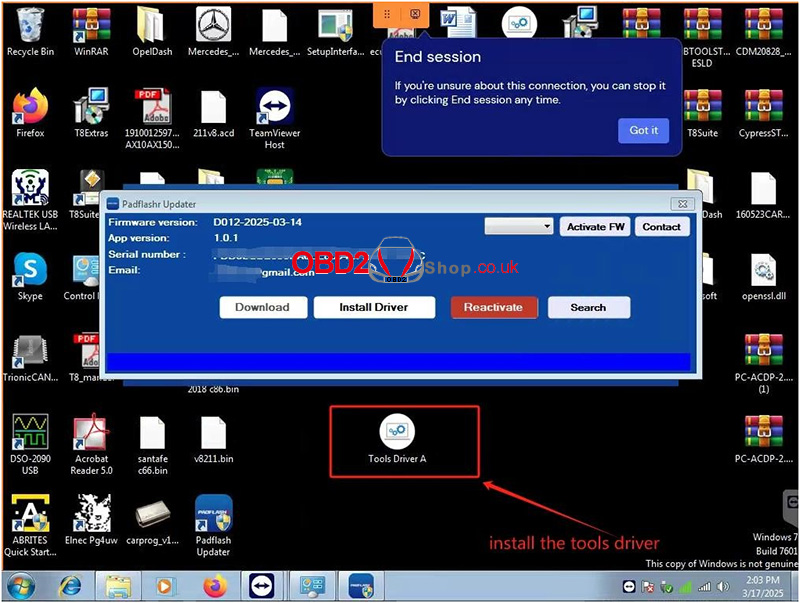
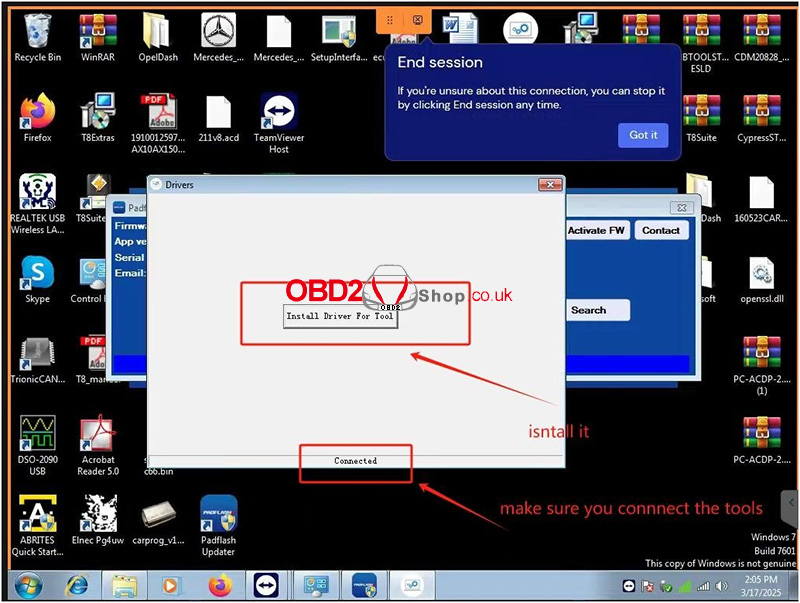
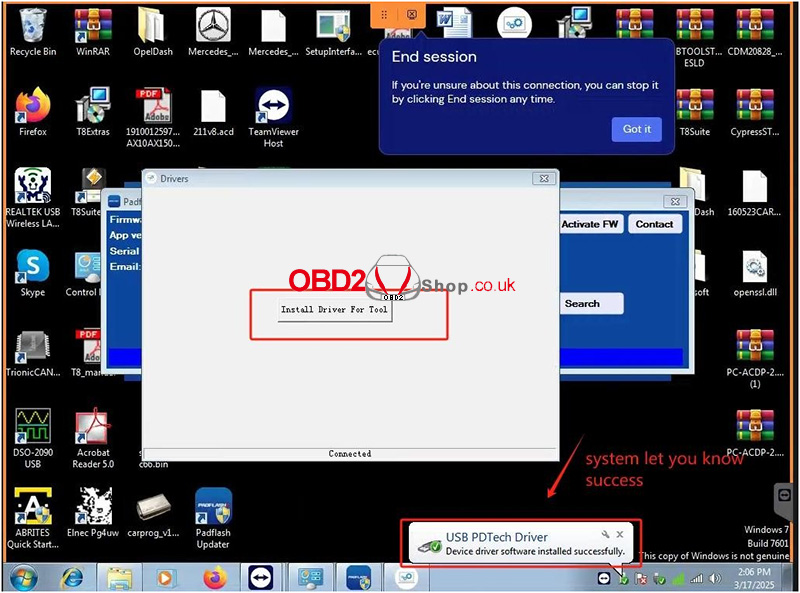
2. Install Tool Drivers
Connect the PadFlash tool to your PC via USB.
Install the drivers in this order
V. Software Activation & Usage
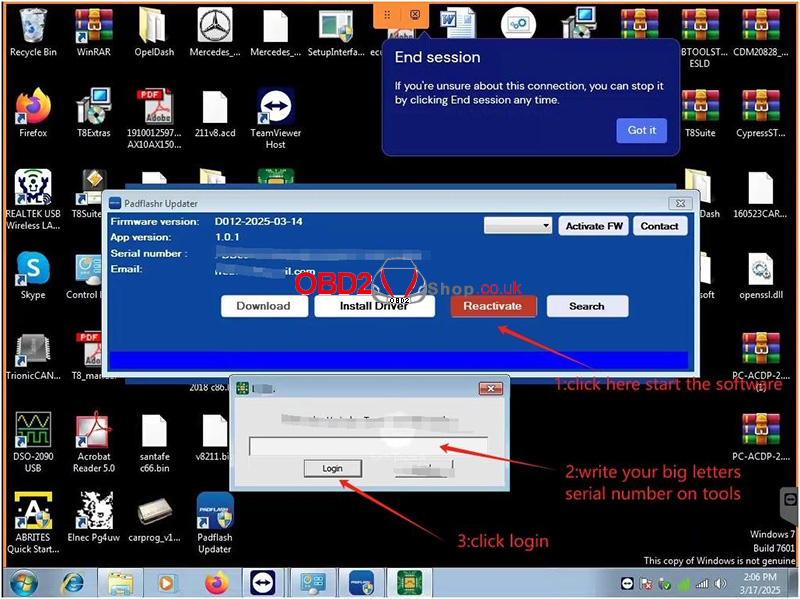
1. Activate Tool License
Launch the PadFlash software and click Active.
Enter the tool serial number in UPPERCASE letters.
2. Firmware Update Workflow
Before closing the software:
Click Activate the FW to update the tool’s firmware.
Exiting the software triggers a full firmware upgrade. Repeat this step every time you close the software.
VI. Important Notes
1. Ensure the serial number is entered in UPPERCASE (copy-paste recommended).
2. Do NOT disconnect the tool or dongle during updates.
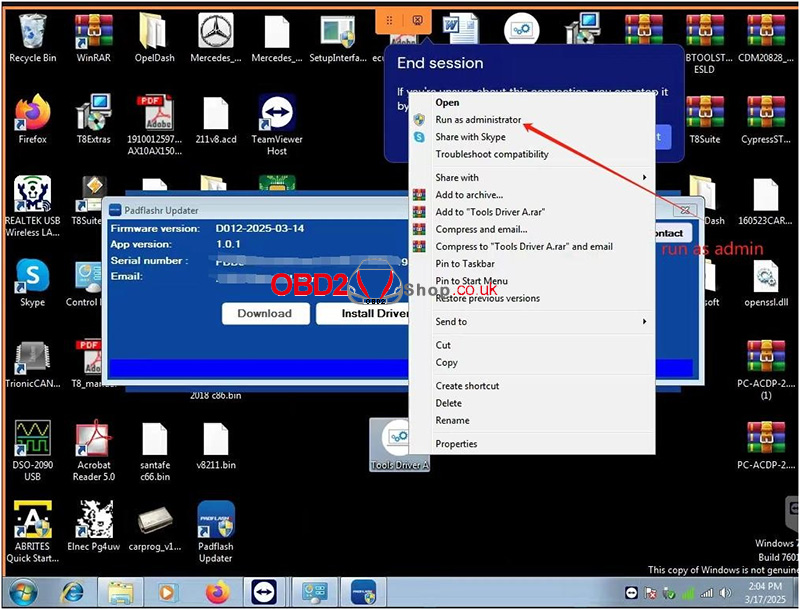
3. If driver installation fails, run the installer as Administrator.
4. Temporarily disable antivirus/firewall to avoid false positives.
By following these steps, you have completed the setup of the PadFlash tool. For technical support, contact www.obd2shop.co.uk.
Oznake: padflash
petak, 14.02.2025.
Comparison of PADFLASH, Foxflash, and Other Tools
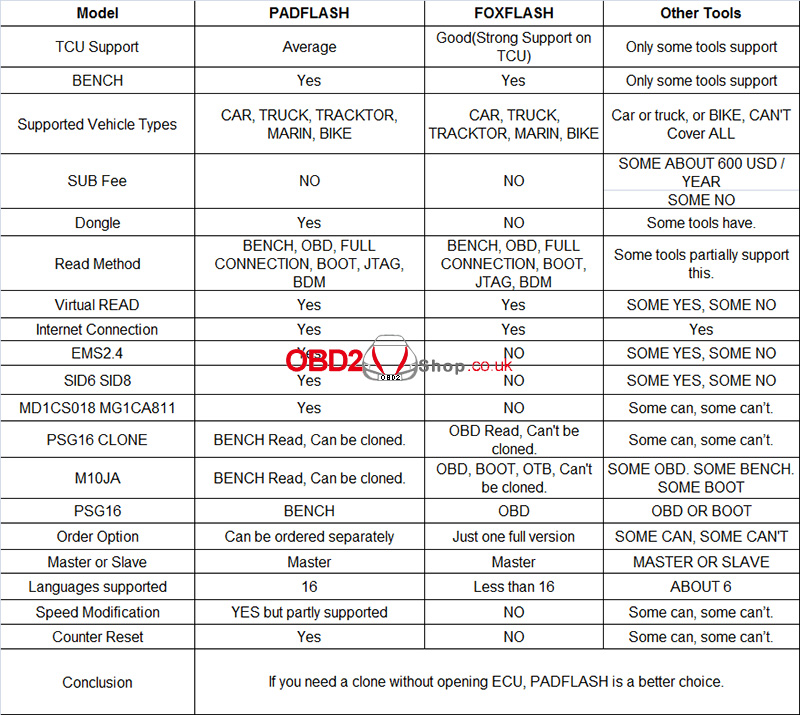
When choosing a tool for ECU tuning and cloning, it's important to understand each option's strengths and limitations. In this article, we'll compare PADFLASH, Foxflash, and Other Tools based on their different features to help you make an informed decision.
1. TCU Support
PADFLASH: Offers average support for TCU (Transmission Control Unit).
Foxflash: Provides strong support for TCU.
Other Tools: Only some tools offer TCU support.
2. BENCH Support
PADFLASH: Yes.
Foxflash: Yes.
Other Tools: Only some tools support BENCH operations.
3. Supported Vehicle Types
PADFLASH: Supports a wide range including cars, trucks, tractors, marine vehicles, and bikes.
Foxflash: Also supports cars, trucks, tractors, marine vehicles, and bikes.
Other Tools: Typically support cars, trucks, or bikes but may not cover all vehicle types.
4. Subscription Fees
PADFLASH: No subscription fees.
Foxflash: No subscription fees.
Other Tools: Some tools require a subscription fee, around $600 per year, while others do not.
5. Dongle Requirement
PADFLASH: Requires a dongle.
Foxflash: Does not require a dongle.
Other Tools: Some tools come with a dongle, while others do not.
6. Read Methods
PADFLASH: Supports multiple methods including BENCH, OBD, full connection, BOOT, JTAG, and BDM.
Foxflash: Also supports BENCH, OBD, full connection, BOOT, JTAG, and BDM.
Other Tools: Some tools partially support these methods.
7. Virtual Read
PADFLASH: Yes.
Foxflash: Yes.
Other Tools: Some tools support virtual read, while others do not.
8. Internet Connection
PADFLASH: Requires an internet connection.
Foxflash: Requires an internet connection.
Other Tools: Also require an internet connection.
9. Special Features
EMS2.4: Supported by PADFLASH but not by Foxflash. Some other tools support it.
SID6 SIDS: Supported by PADFLASH but not by Foxflash. Some other tools support it.
MD1CS018 MG1CA811: Supported by PADFLASH but not by Foxflash. Some other tools support it.
10. Cloning Capabilities
PSG16 CLONE: PADFLASH can clone via BENCH read, while Foxflash cannot clone via OBD read.
M10JA: PADFLASH can clone via BENCH read, while Foxflash cannot clone via OBD, BOOT, or OTB.
PSG16: PADFLASH uses BENCH, Foxflash uses OBD.
11. Order Options
PADFLASH: Can be ordered separately.
Foxflash: Only available as a full version.
Other Tools: Some tools offer separate ordering options, while others do not.
12. Languages Supported
PADFLASH: Supports 16 languages.
Foxflash: Supports fewer than 16 languages.
Other Tools: Typically support about 6 languages.
13. Speed Modification
PADFLASH: Partially supports speed modification.
Foxflash: Does not support speed modification.
Other Tools: Some tools support speed modification, while others do not.
14. Counter Reset
PADFLASH: Supports counter reset.
Foxflash: Does not support counter reset.
Other Tools: Some tools support counter reset, while others do not.
Conclusion
If you need a tool that allows cloning without opening the ECU, PADFLASH is a better choice due to its comprehensive support and flexibility. Foxflash excels in TCU support and offers a robust full version without the need for a dongle. Other tools vary widely in their capabilities and may require additional fees or have limited support.
Choosing the right tool depends on your specific needs, such as the types of vehicles you work with and the features you require.
www.obd2shop.co.uk
Oznake: padflash

| < | siječanj, 2026 | |||||
| P | U | S | Č | P | S | N |
| 1 | 2 | 3 | 4 | |||
| 5 | 6 | 7 | 8 | 9 | 10 | 11 |
| 12 | 13 | 14 | 15 | 16 | 17 | 18 |
| 19 | 20 | 21 | 22 | 23 | 24 | 25 |
| 26 | 27 | 28 | 29 | 30 | 31 | |
Svibanj 2026 (1)
Siječanj 2026 (19)
Prosinac 2025 (22)
Studeni 2025 (21)
Listopad 2025 (20)
Rujan 2025 (21)
Kolovoz 2025 (8)
Srpanj 2025 (13)
Lipanj 2025 (9)
Svibanj 2025 (12)
Travanj 2025 (10)
Ožujak 2025 (12)
Veljača 2025 (14)
Siječanj 2025 (8)
Prosinac 2024 (6)
Studeni 2024 (6)
Listopad 2024 (4)
Rujan 2024 (7)
Kolovoz 2024 (14)
Srpanj 2024 (12)
Lipanj 2024 (10)
Svibanj 2024 (13)
Travanj 2024 (12)
Ožujak 2024 (11)
Veljača 2024 (2)
Siječanj 2024 (10)
Prosinac 2023 (8)
Studeni 2023 (6)
Listopad 2023 (7)
Rujan 2023 (9)
Kolovoz 2023 (6)
Srpanj 2023 (10)
Lipanj 2023 (4)
Veljača 2023 (8)
Siječanj 2023 (14)
Prosinac 2022 (13)
Studeni 2022 (14)
Listopad 2022 (18)
Rujan 2022 (9)
Kolovoz 2022 (16)
Srpanj 2022 (11)
Lipanj 2022 (14)
Svibanj 2022 (13)
Travanj 2022 (12)
Ožujak 2022 (12)
Veljača 2022 (13)
Siječanj 2022 (10)
Srpanj 2021 (1)
Dnevnik.hr
Gol.hr
Zadovoljna.hr
Novaplus.hr
NovaTV.hr
DomaTV.hr
Mojamini.tv