OBD2 tools on OBD2shop.co.uk https://blog.dnevnik.hr/obd2shop
utorak, 21.10.2025.
Xhorse VVDI Key Tool Plus Programs a VW Passat B6 ID48 Key
Adding a key for the Volkswagen Passat B6 using the Xhorse VVDI Key Tool Plus is a quick and straightforward process, accomplished entirely via OBD. This guide outlines the procedure in four simple steps, including free PIN code reading. Follow the steps below to learn how.
Step 1: Read PIN Code
1. Navigate to: Immo programming > VW > Select by type > 4th immo system - Volkswagen/Skoda/Seat > VW Passat/CC key learn > Start programming.
2. Select 1 - Get PIN/CS > Read from engine(read by OBDII).
Important Notes:
` For the B6/CC/B7, you can read the engine ECU to obtain the PIN and a 6-byte CS code without needing the comfort module dump file.
a Adding a Key: The 7th byte of the CS can be obtained from a working key. For 46-chip keys, use FF for the 7th byte.
b All Keys Lost: For 48-chip keys, try to make a dealer key. For 46-chip keys, use FF for the 7th byte.
c Press "OK". A prompt will appear stating "Only support read PIN, CS, MAC now". Press "OK" again.
d Switch the ignition OFF, then ON.
e The login code will be successfully read.
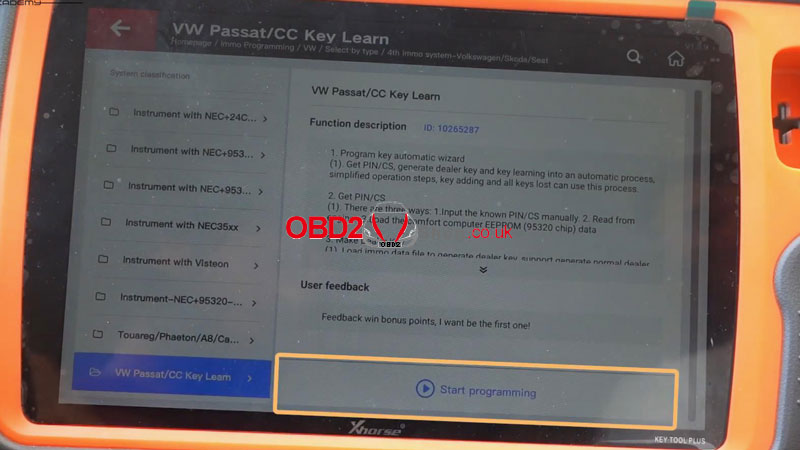
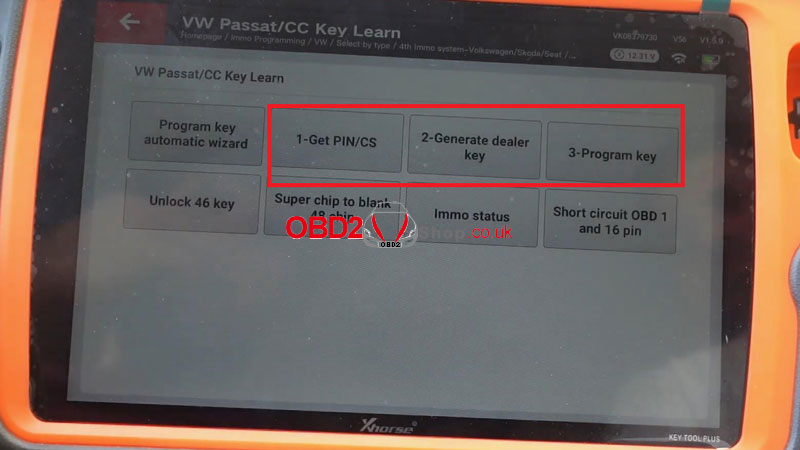
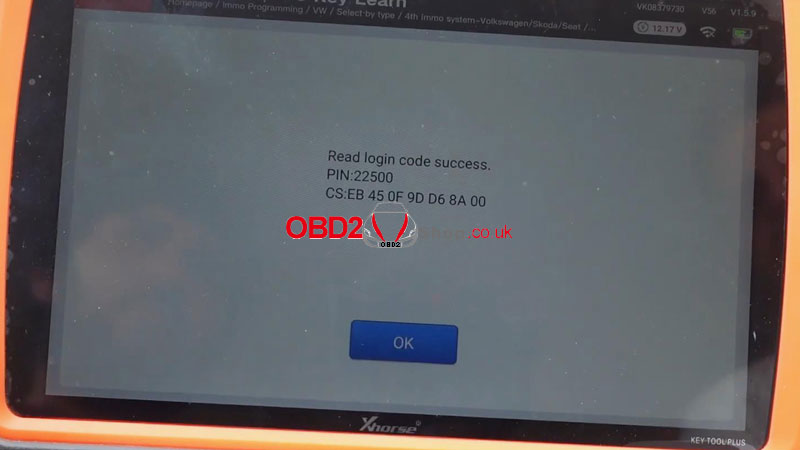
Step 2: Generate Dealer Key
1. Select 2 - Generate dealer key > 48 - generate dealer key.
2. Choose Generate dealer keys with the help of ignition key.
3. You will be prompted to input the 7-byte CS code and the 5-digit password.
4. Insert a working key into the VVDI Key Tool Plus programmer.
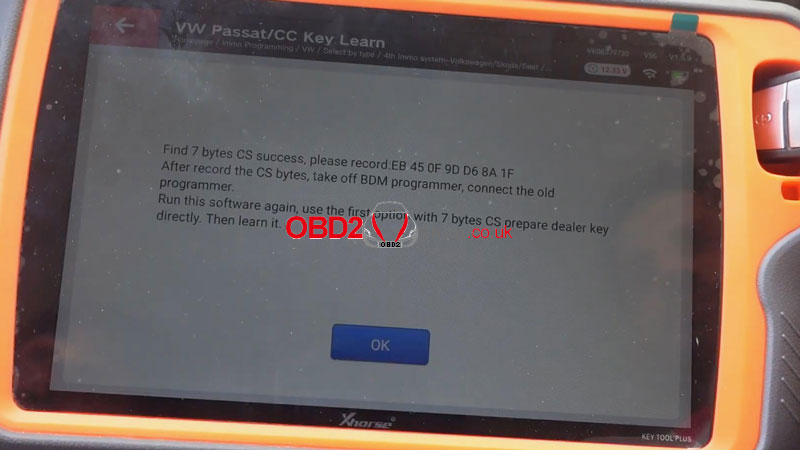
5. The 7-byte CS code will be found successfully. Record these bytes.
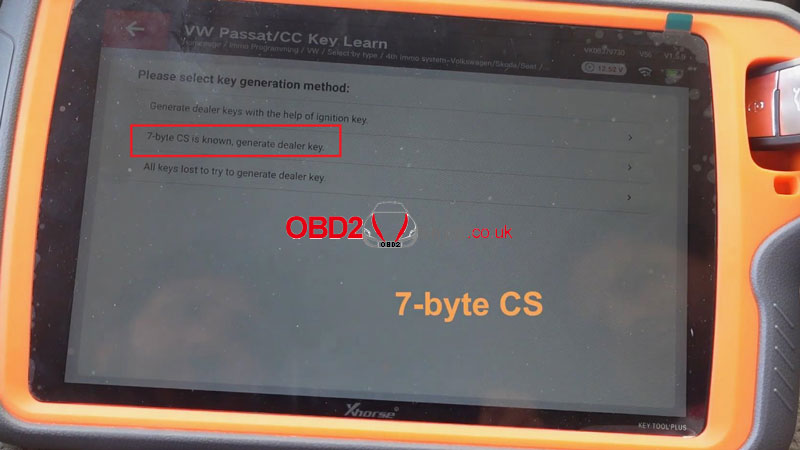
6. Run the software again and use the first option (7-byte CS is known, generate dealer key). Input the 7-byte CS code and the 5-digit password.
7. Put the new, unlocked key into the VVDI Key Tool Plus Programmer.
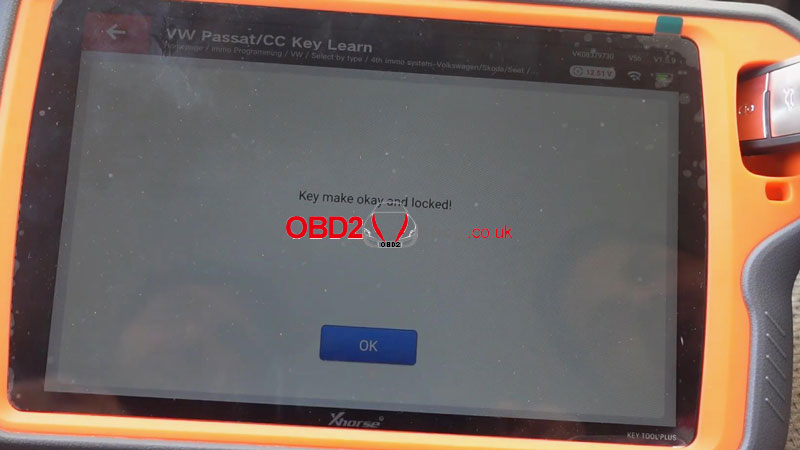
8. The key will be made successfully and locked.
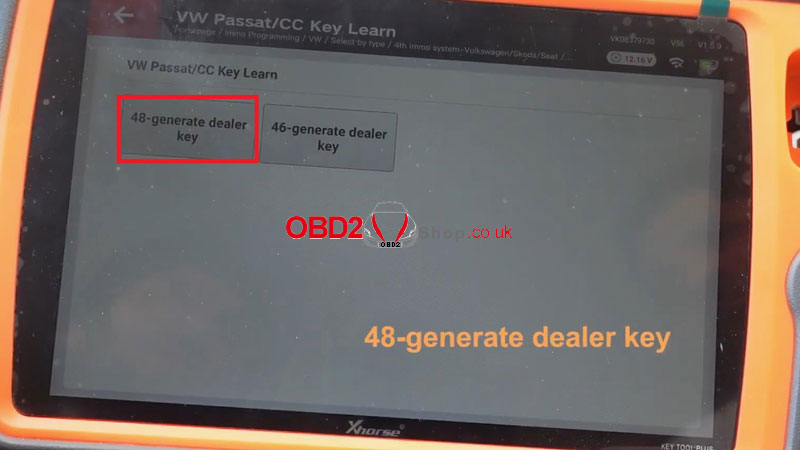
Step 3: Learn Key
1. Select 3 - program key.
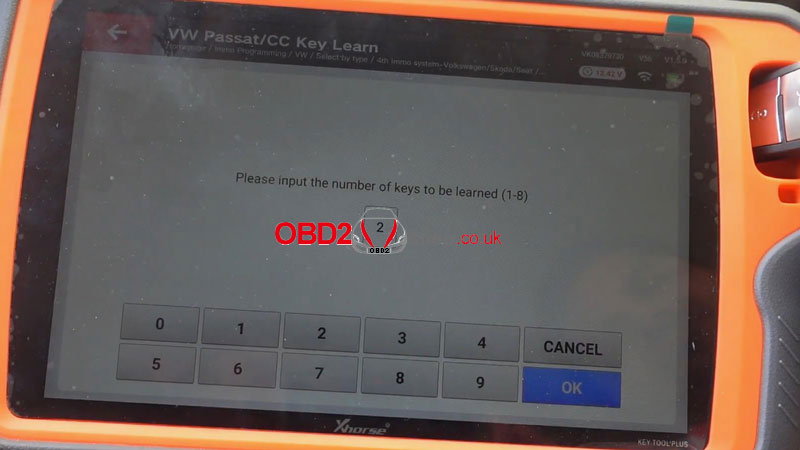
2. Input the number of keys to be learned (e.g., 2) and the 5-digit password.
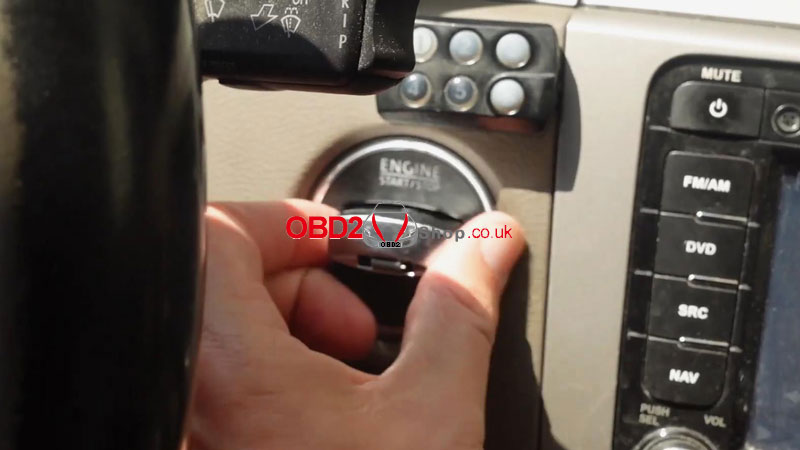
3. Insert each key to be programmed into the ignition switch in turn. Rotate the key until the instrument panel lights are on and hold it for a few seconds.
4. Press "OK" after completing the operation for all keys.
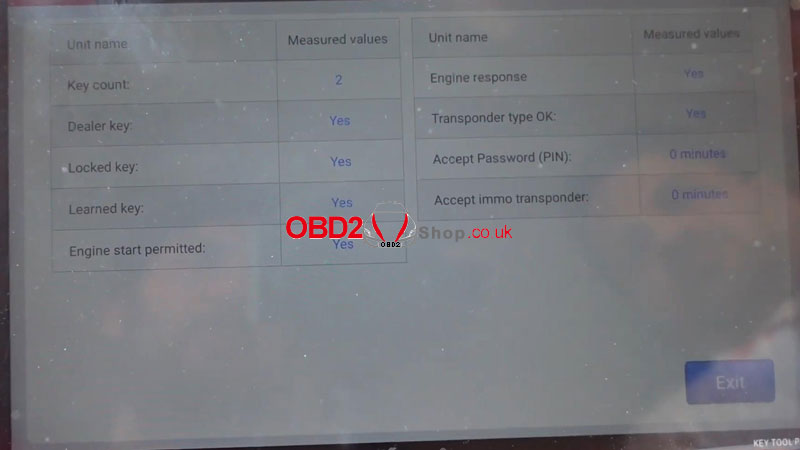
8. You can enter "Immo status" to confirm the number of keys learned in the system.
Step 4: Program Remote
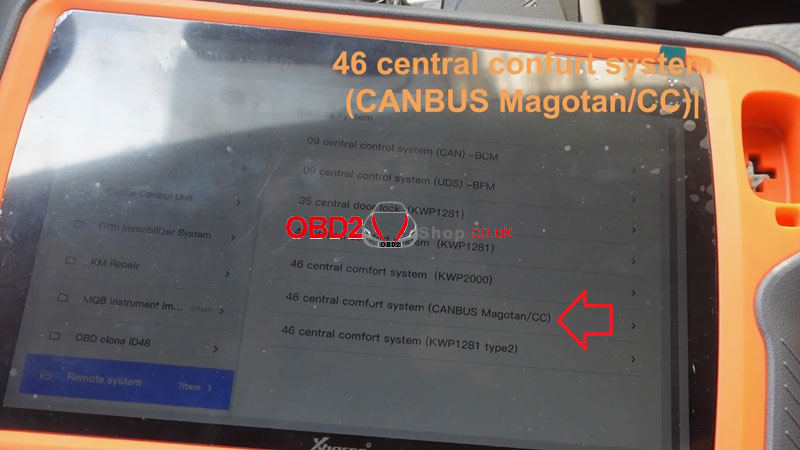
1. Navigate to: Select by type > Remote system > 46 central comfort system (CANBUS Magotan/CC) > Start programming > Program a remote.
2. Press the central lock button once.
3. Use an invalid (non-remote) key to turn on the ignition. (For smart keys: turn off the ignition, place the smart key in the sensing area, then turn the ignition on).
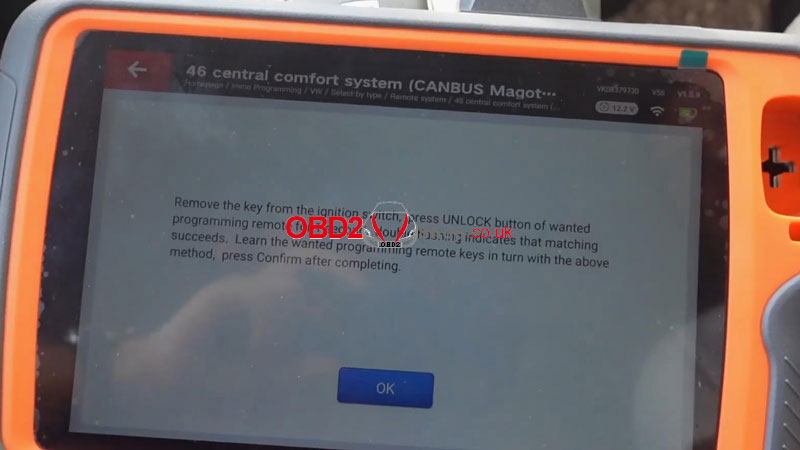
4. Remove the key from the ignition.
5. Press the UNLOCK button on the remote you wish to program for 1 second. Double flashing of the indicators confirms successful matching.
6. Repeat the previous step for all remotes you want to program, then press "OK".
7. Test all remotes to ensure they are functioning correctly.
Done!
www.obd2shop.co.uk
Oznake: vvdi key tool plus
petak, 17.10.2025.
Xhorse VVDI Key Tool Plus MQB NEC3526 PCB Wire Cutting Guide
After activating the VAG MQB license on the Xhorse VVDI Key Tool Plus Pad, it is essential to learn how to lift a pin or cut a wire before reading the NEC35xx immobilizer data. This procedure is required to proceed with key learning and all-keys-lost programming for MQB vehicles.
The following guide demonstrates how to cut the correct PCB wire on an MQB dashboard equipped with an NEC3526 immobilizer.
Step-by-Step Guide to Cutting the Wire on MQB Dashboard (NEC3526)
1. Remove the PCB Board from the Dashboard Module
Begin by carefully taking out the printed circuit board (PCB) from the instrument cluster.
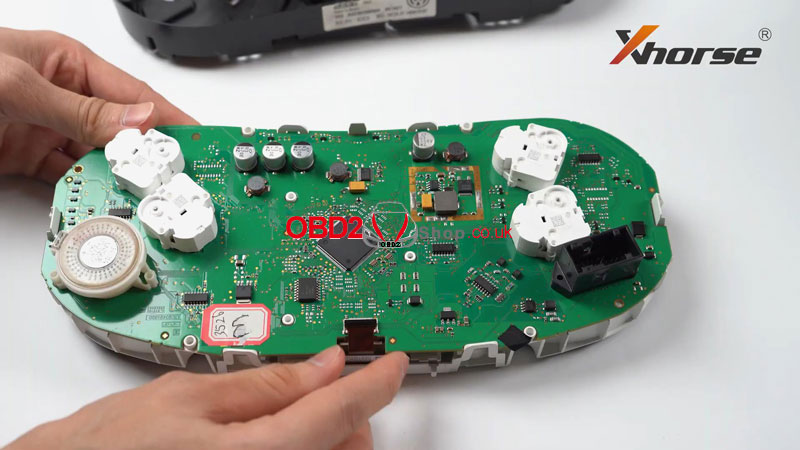
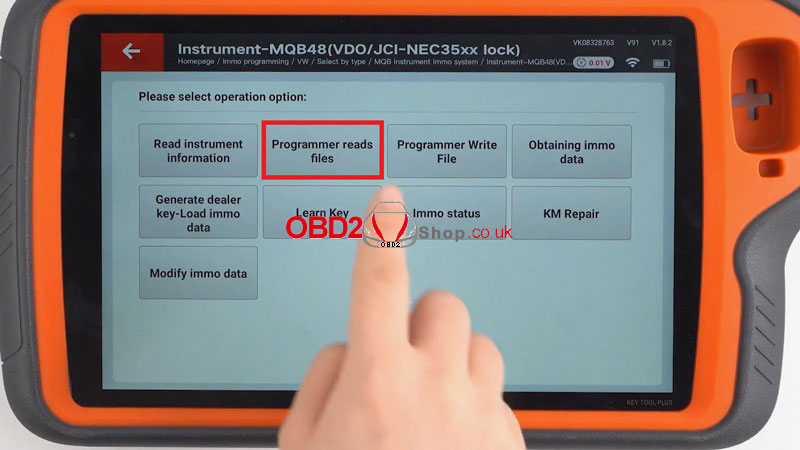
2. Access the Connection Diagram in VVDI Key Tool Plus
Navigate through the menu as follows:
Immo Programming ’ VW ’ Select by Type ’ MQB Instrument Immo System ’ Instrument – MQB48 (VDO/JCI – NEC35xx Locked) ’ Start Programming ’ Programmer Read Files ’ Read NEC35xx Chip
This will display the wiring and connection diagram needed for the procedure.
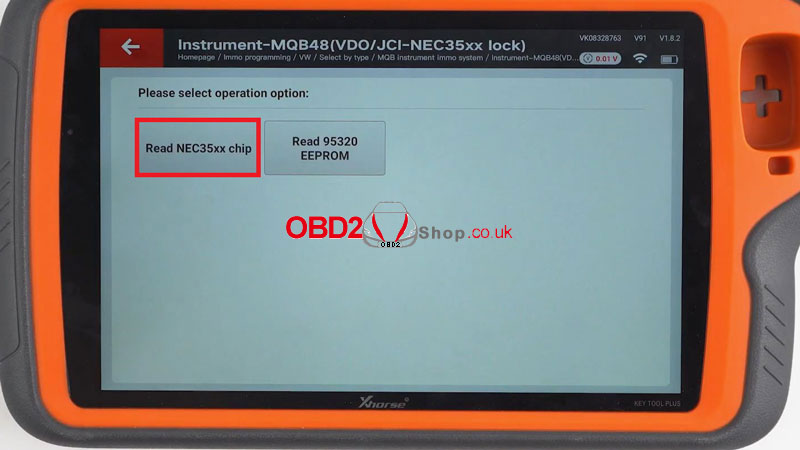
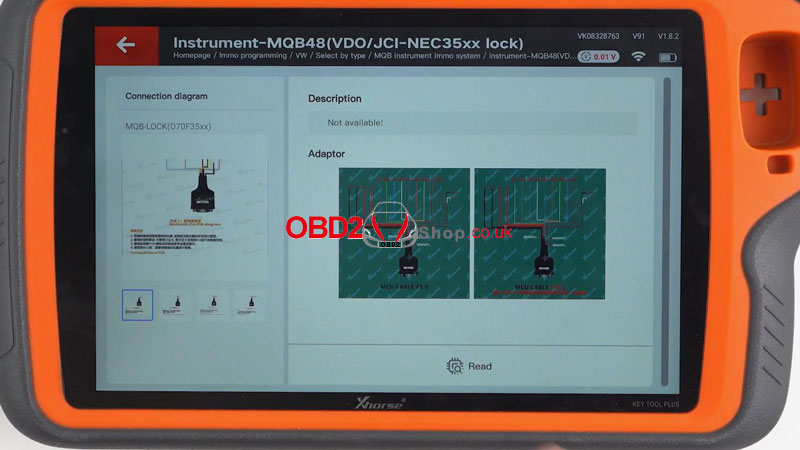
3. Identify the Wire Cutting Locations
Using the diagram, locate the exact positions on the PCB where the wire must be cut.
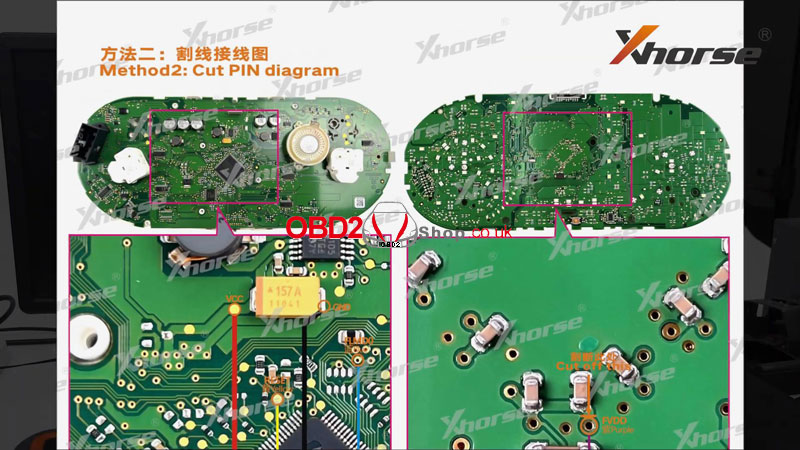
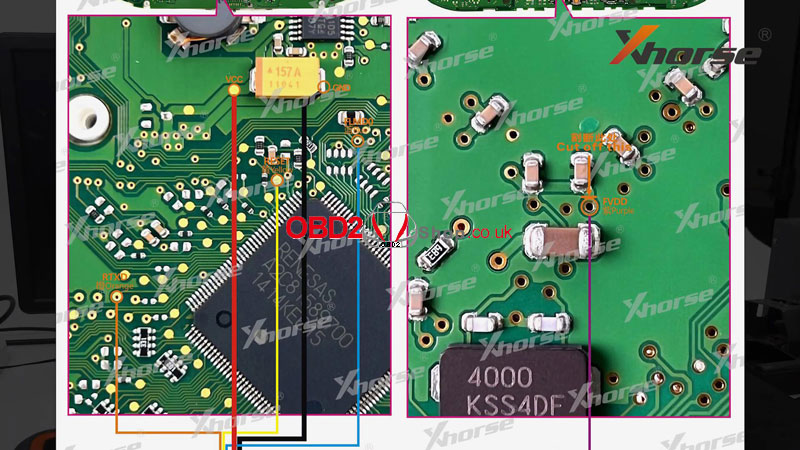
4. Carefully Cut the Wire
Follow the instructions to cut the designated wire. Ensure that the FVDD hole no longer conducts electricity to the adjacent capacitor.
Caution: Avoid damaging nearby capacitors during the cutting process.
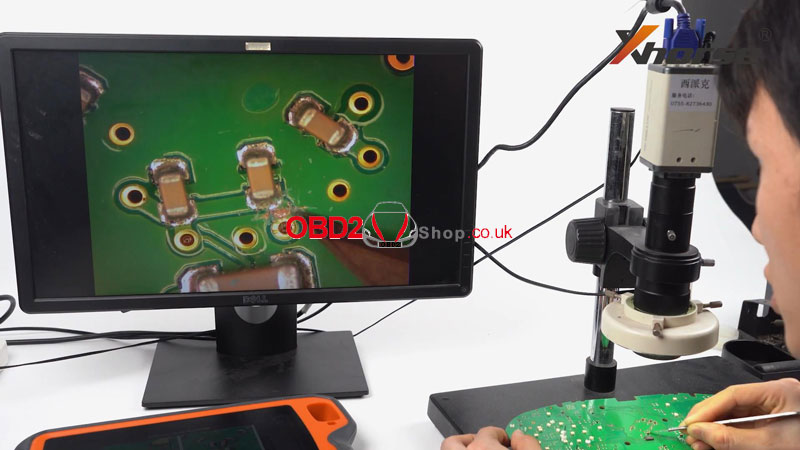
5. Solder the MCU Cable to the PCB
Once the wire is cut, solder the MCU cable to the board as shown in the diagram.
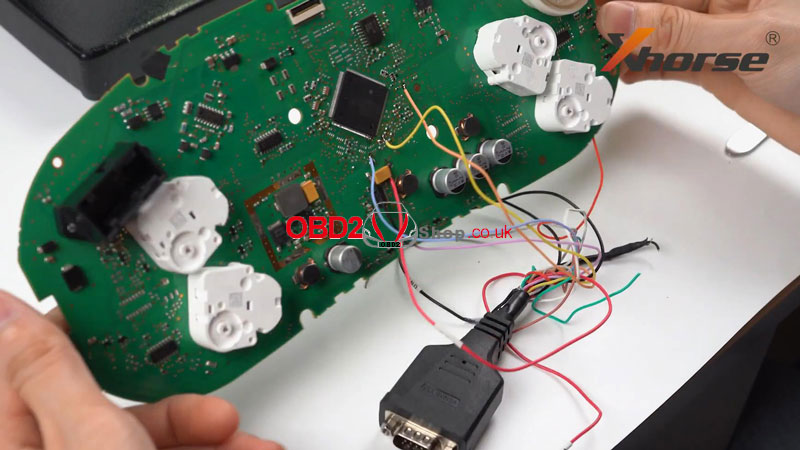
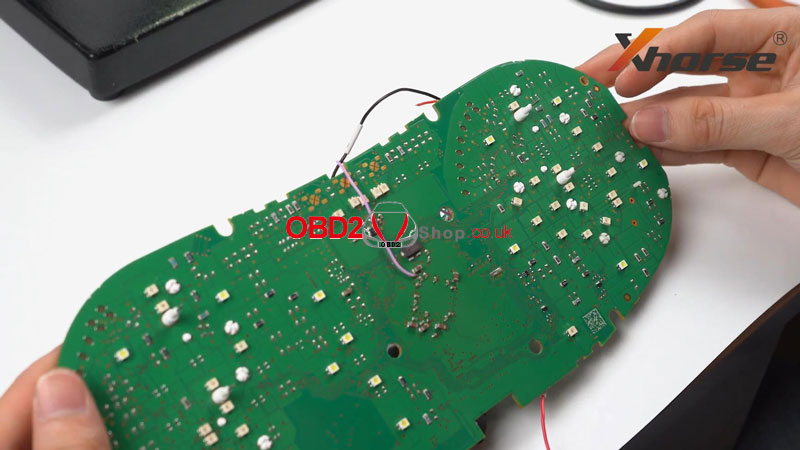
Completion
After completing these steps, the VVDI Key Tool Plus is ready to read the MQB dashboard immobilizer data.
Important: Once reading is complete, remember to restore the PCB by reconnecting the cut wire or repairing the board as necessary.
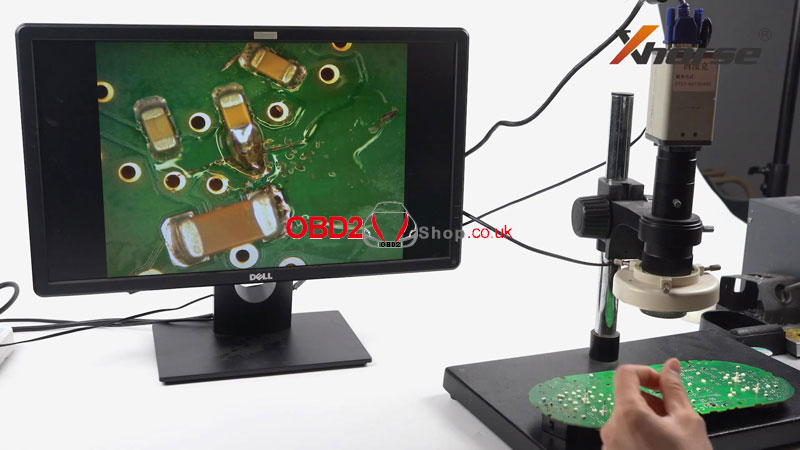
Video Tutorial:
https://youtu.be/fsp_NS0khqU
www.obd2shop.co.uk
Oznake: vvdi key tool plus
utorak, 14.10.2025.
Benz W210 All Key Lost with Xhorse VVDI Key Tool Plus
The Xhorse VVDI Key Tool Plus Pad provides a solution for programming a Mercedes-Benz W210 in an all-keys-lost scenario directly on the bench. The entire process can be completed in four main steps. Follow the detailed procedure below.
Step 1: Save EIS Data
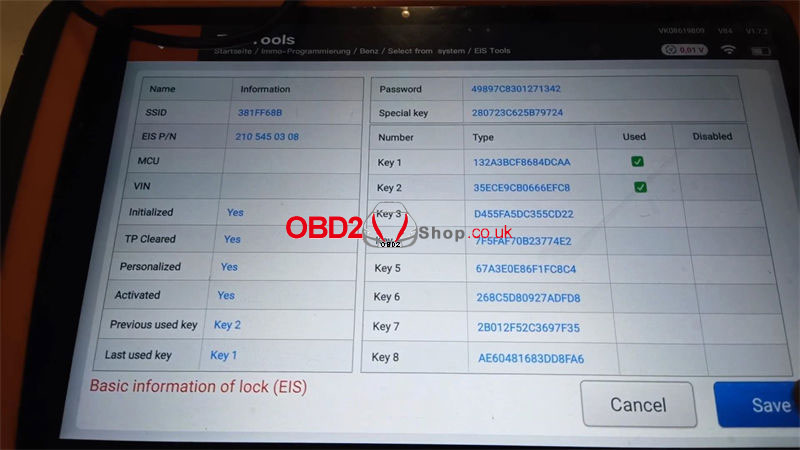
Navigate to: IMMO Programming >> Europe >> Benz >> Select from system >> EIS tools >> Start programming >> Auto detect (CAN)
Save the EIS data file to a secure location.
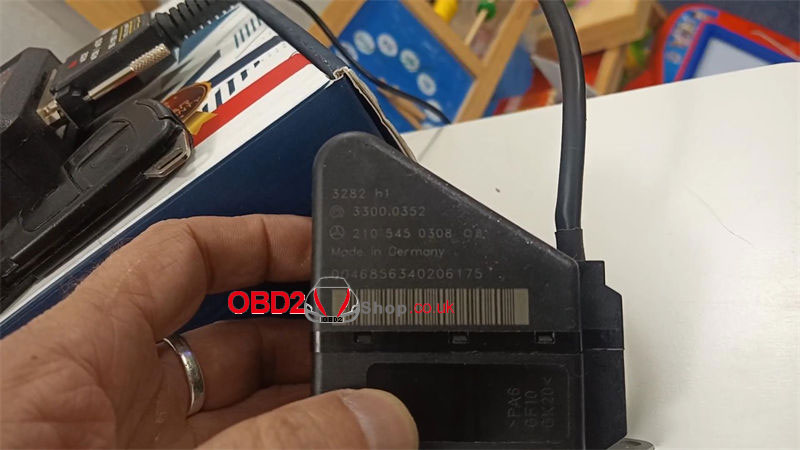
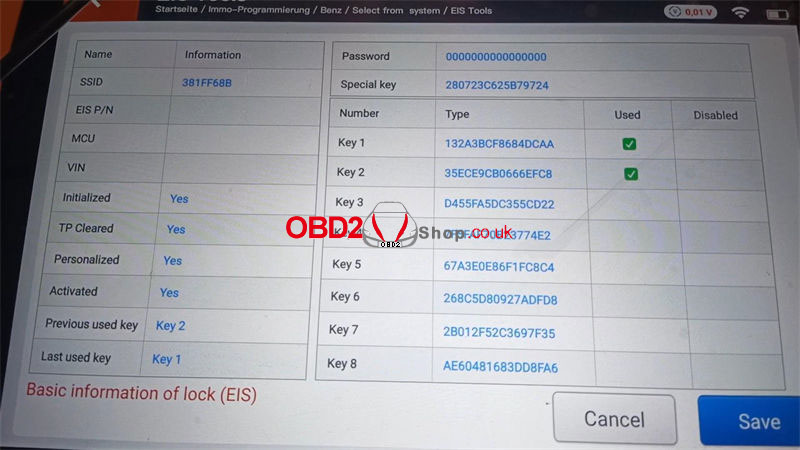
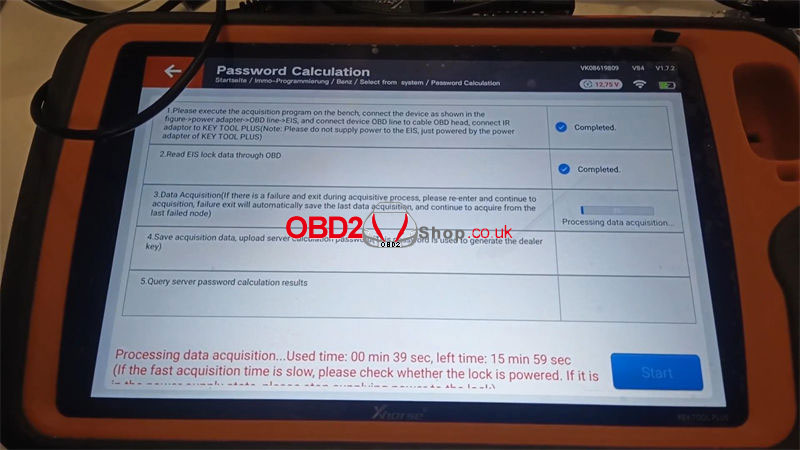
Step 2: Password Calculation
Navigate to: IMMO Programming >> Europe >> Benz >> Select from system >> Password calculation >> Start
The tool will display "Acquisition finished". Upload the EIS data file you saved in Step 1 using the "Upload Data" button.
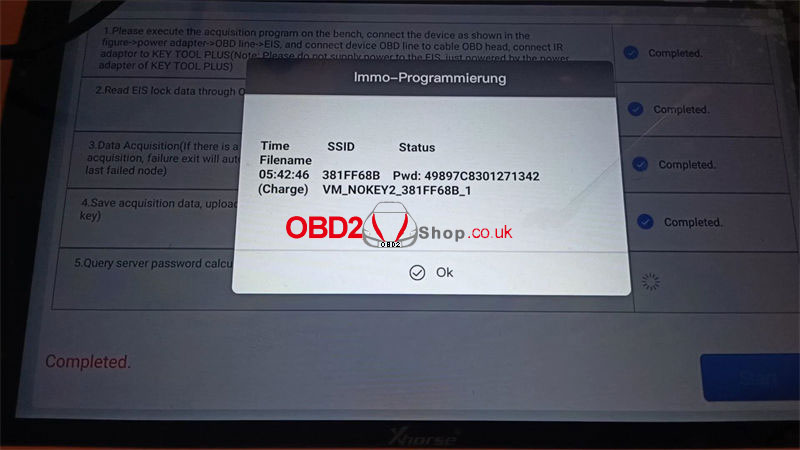
After a successful upload, the VVDI Key Tool Plus will automatically begin calculating the password. This process takes approximately 50 seconds.
Once completed, the message "Password has been successfully read out" will appear.
Save the newly generated EIS file, which contains the password.
Step 3: Generate Key File
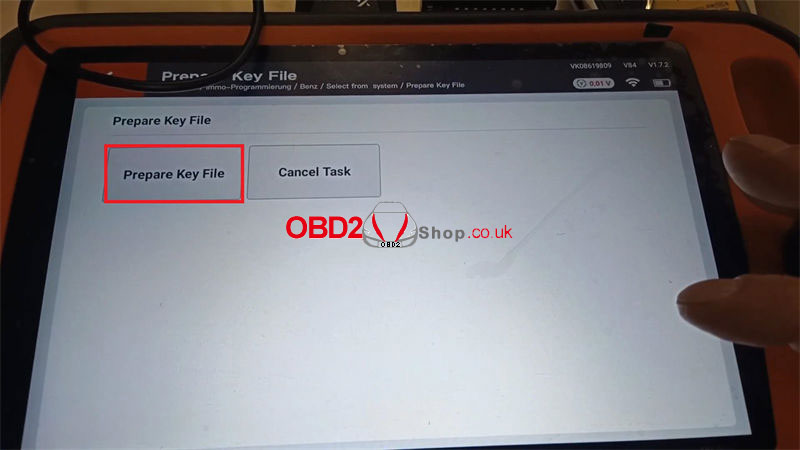
Navigate to: Prepare key file >> Start programming >> Prepare key file
Load the new EIS file (the one with the password) that you saved in the previous step.
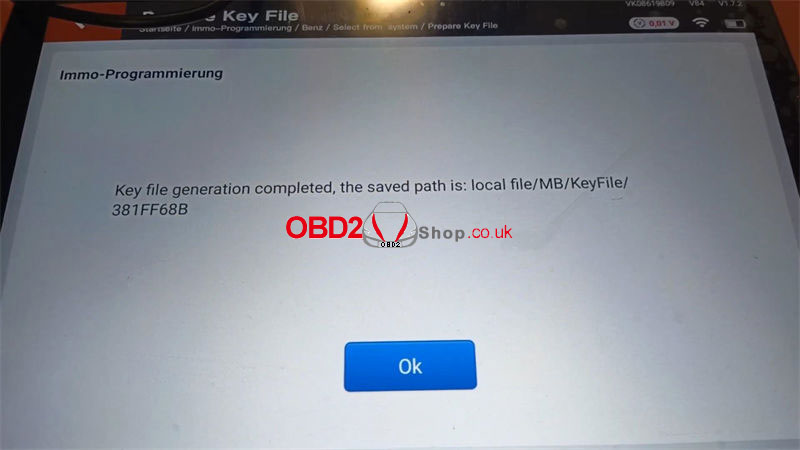
The key file will be generated. A "Key file generation completed" message will confirm that the process is finished.
Step 4: Write New Key
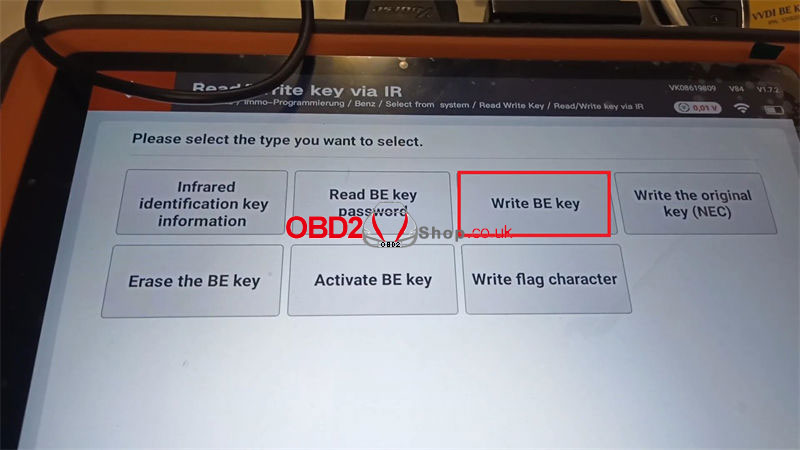
Navigate to: Read write key >> Read/Write key via IR >> Start programming >> Write BE key
Load the key file that was generated in Step 3.
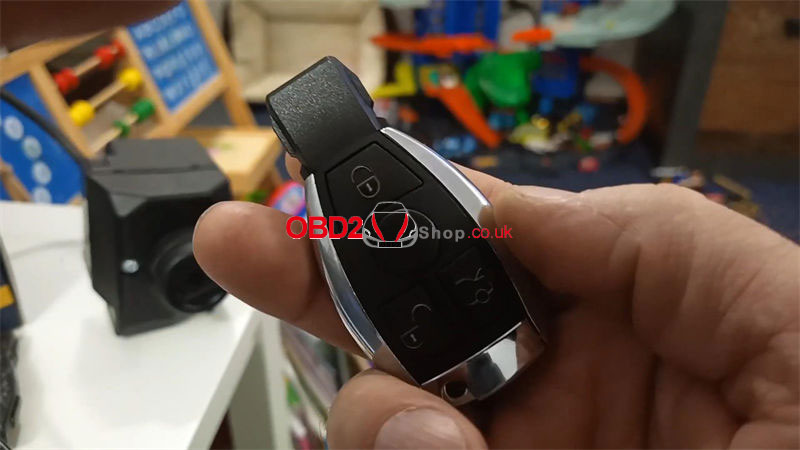
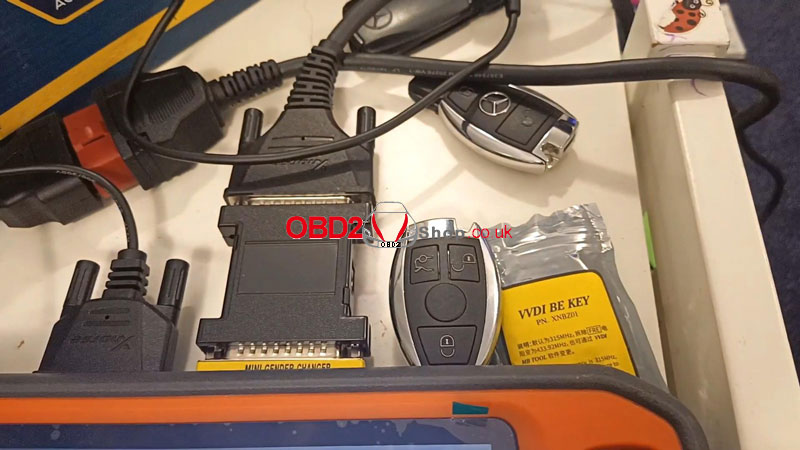
Insert the new BE (Smart Key) into the infrared antenna on the Key Tool Plus device.
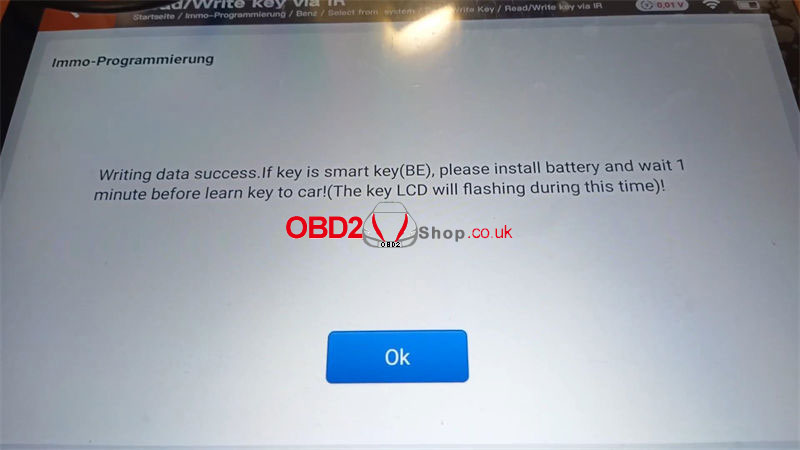
The tool will write the data to the key. A "Writing data success" message indicates a successful operation.
Important Note: If the key is a smart key (BE), you must first install the battery and then wait approximately 1 minute before attempting to program the key to the car. During this time, the key's LCD screen will flash.
The key programming is now complete.
www.obd2shop.co.uk
Oznake: vvdi key tool plus
četvrtak, 22.05.2025.
VVDI Key Tool Plus Adds 2020 Camry Smart Key via OBD
The Xhorse VVDI Key Tool Plus has successfully added functionality for programming smart keys on the 2020 Toyota Camry via the OBD-II port. Here is a detailed procedure using an original key as a reference.
Step-by-Step Programming Guide:
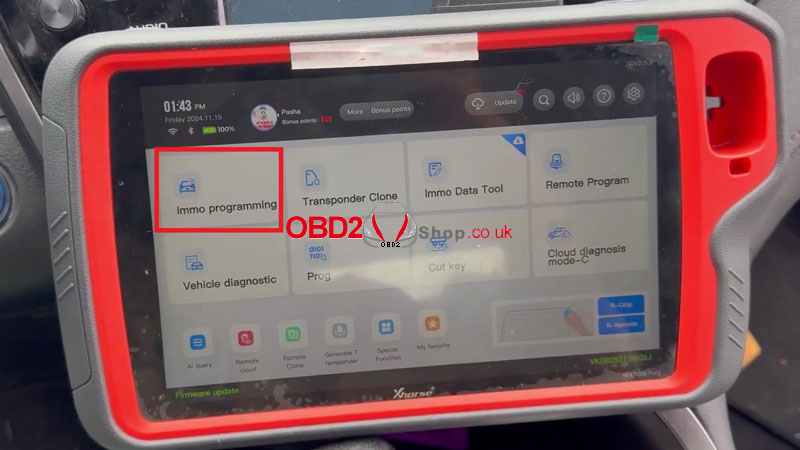
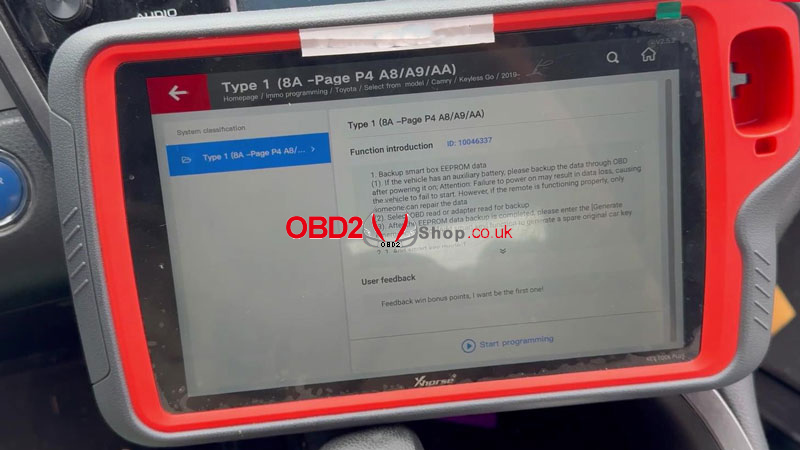
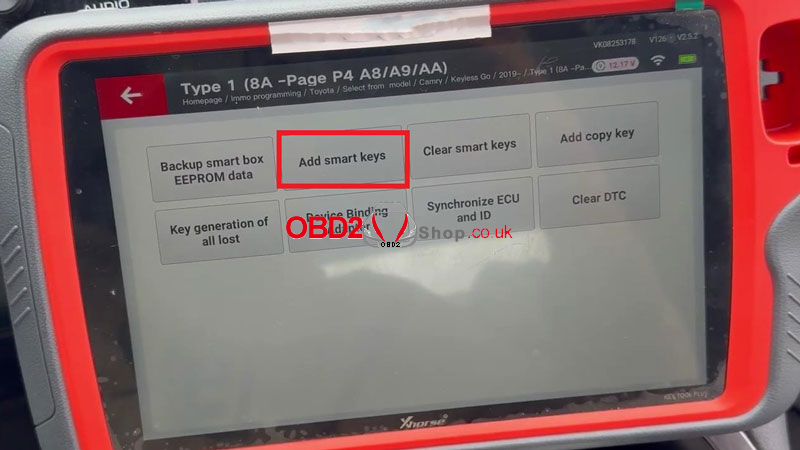
1. Navigate through the menu: Key programming >> ASIA >> Toyota. Select the model: Camry >> Keyless Go >> 2019- >> Type 1 (8A - Page P4 A8/A9/AA) >> Start programming >> Add smart keys.
2. The tool will display a prompt regarding EEPROM data. If you backed up the data via OBD, ignore it. If you just used adapter-backed data, restore the vehicle first. Press Yes.
3. An internet connection is required. The function allows the use of a registered original or emergency start key to add a new one. Press OK.
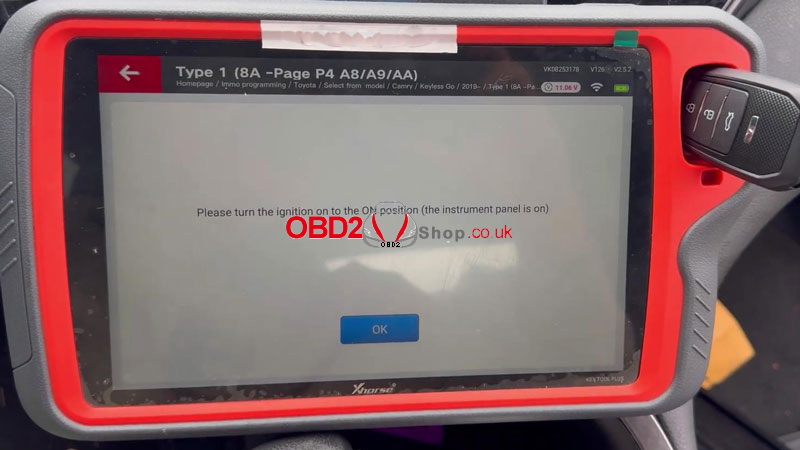
4. Turn the ignition to the ON position (instrument panel lights on). The Key Tool Plus will display the software number. Press OK.
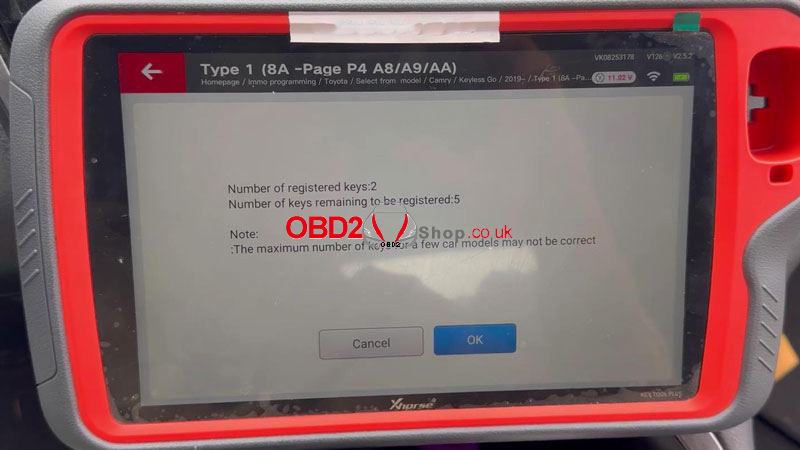
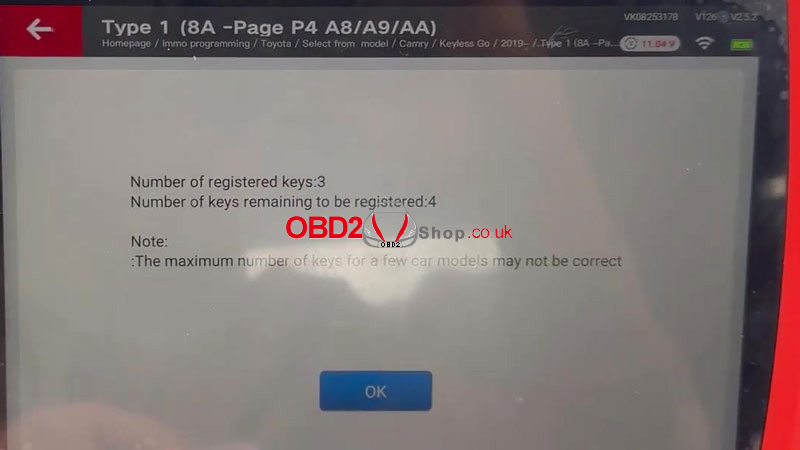
5. The screen will show the current number of registered keys and the number of keys that can still be registered (e.g., Registered: 2, Remaining: 5). Note that the maximum key count may be inaccurate for some models. Press OK.
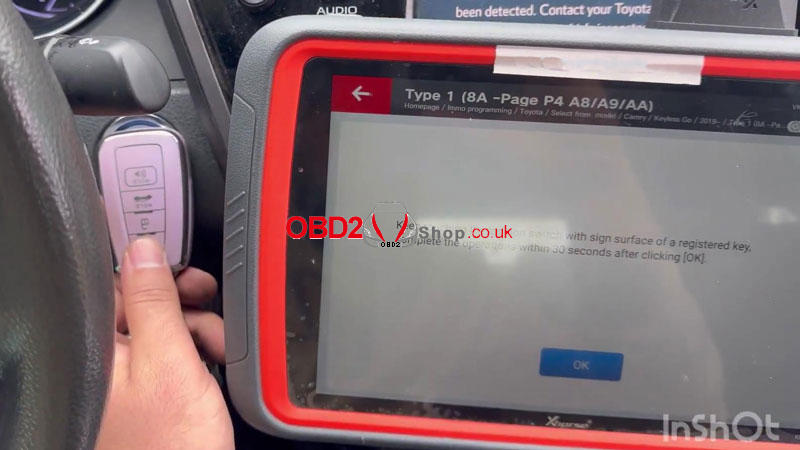
6. Crucial Step: Within 30 seconds of pressing OK, continuously touch the ignition switch with the sign surface of a registered key.
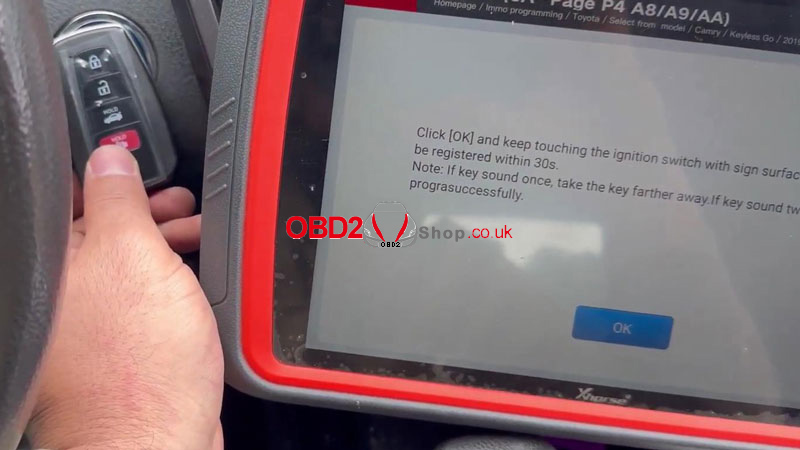
7. Immediately after, within 30 seconds, touch the ignition switch with the sign surface of the new key to be registered.
Note: One beep means you should move the key farther away. Two beeps indicate successful programming. Press OK.
8. Keep the key touching the ignition switch and wait for the registration to complete. A "Key registration succeeded!" message will appear, updating the key counts (e.g., Registered: 3, Remaining: 4).
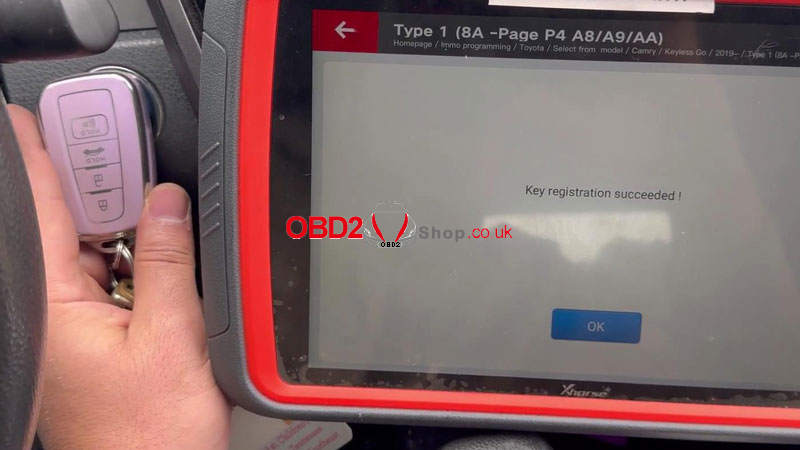
Important Note: After programming is complete, if the key remote control does not function, use the [Synchronize ECU and ID] function in the tool (multiple attempts may be needed) to sync the remote code.
www.obd2shop.co.uk
Oznake: vvdi key tool plus
ponedjeljak, 24.03.2025.
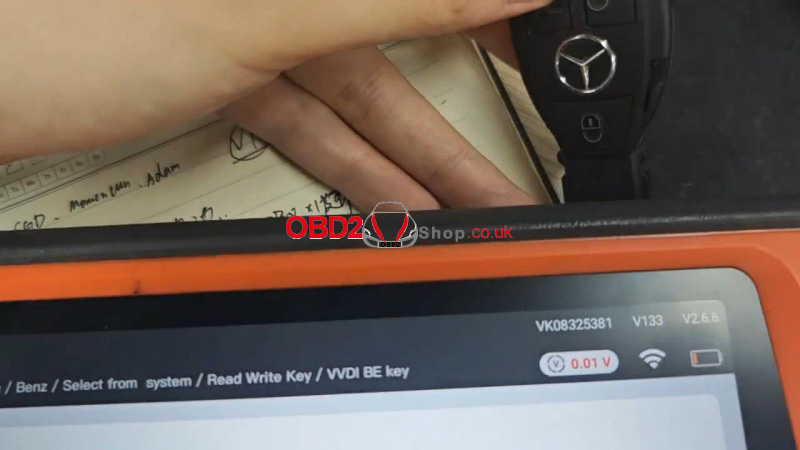
How to Check Bonus Points of VVDI BE Key on Xhorse Key Tool Plus?
This is a quick guide on checking VVDI BE Key Pro bonus points on Xhorse VVDI Key Tool Plus. Follow the steps below to find out if the BENZ Key points have been used.
Immo programming >> Benz >> Select from system >> Read Write Key >> VVDI BE key >> Start programming >> Online verify BE key
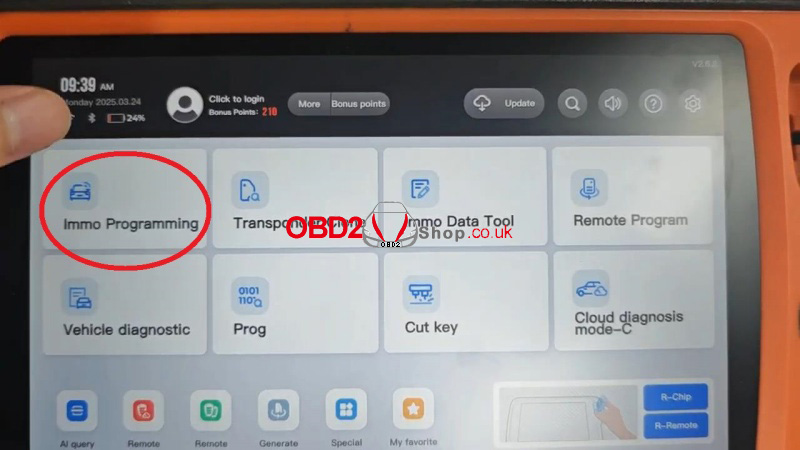
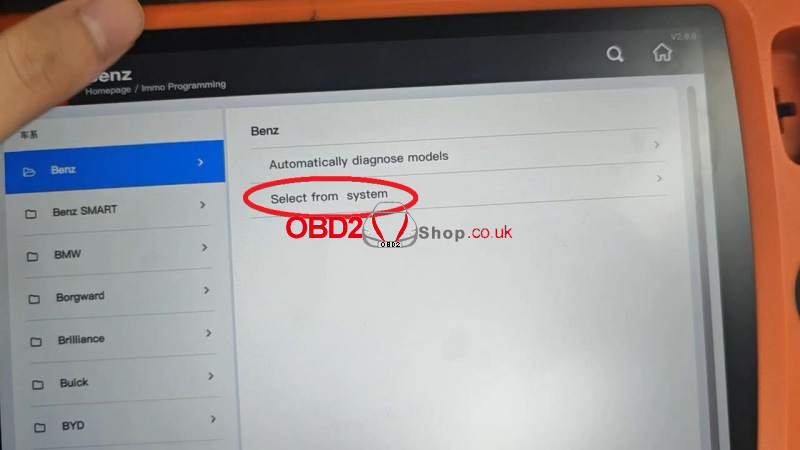
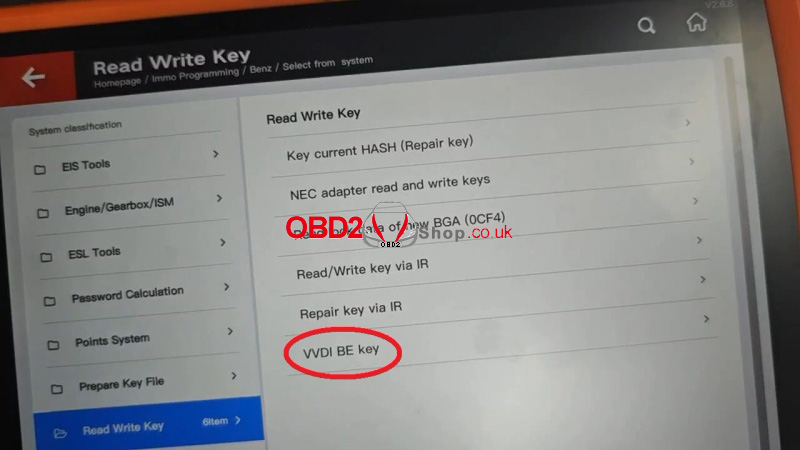
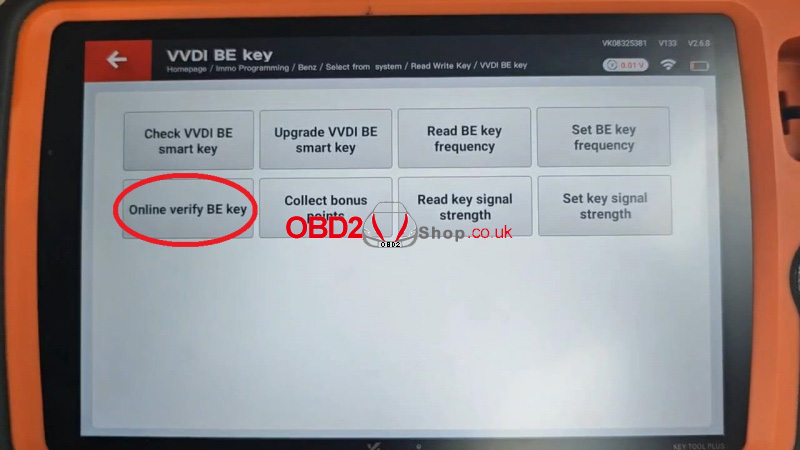
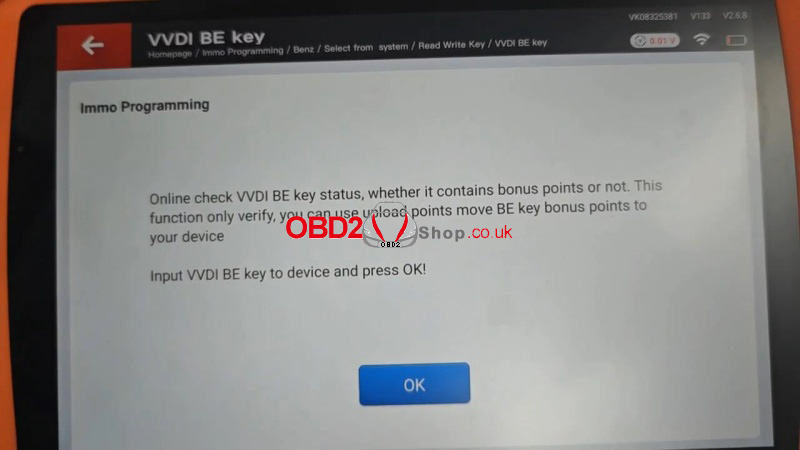
Online check VVDI BE key status, whether it contains bonus points or not. This function only verifies, you can use upload points to move BE key bonus points to your device.
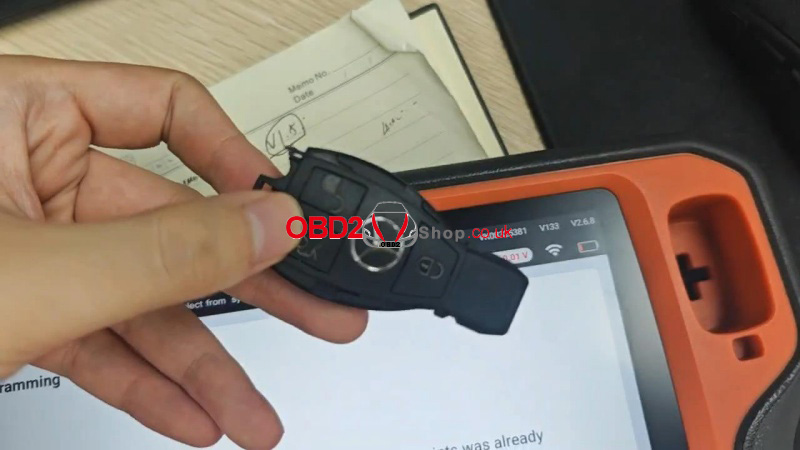
Input the VVDI BE Key to the device, and press OK!
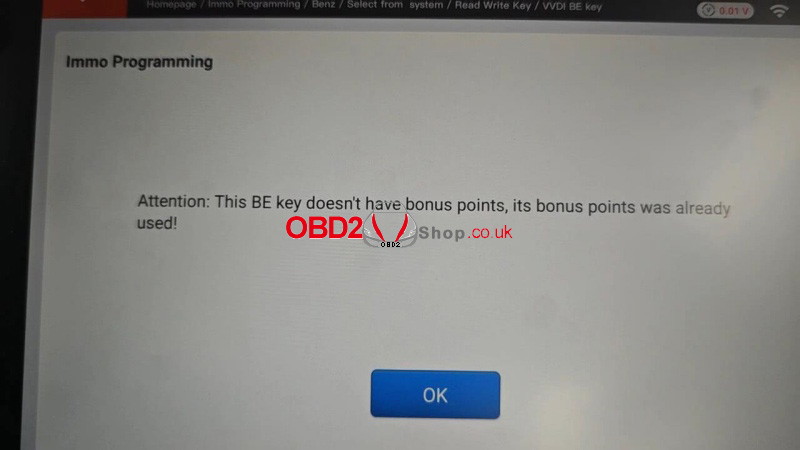
Xhorse Key Tool Plus will tell the result.
Attention: This BE key doesn't have bonus points, its bonus points were already used!
www.obd2shop.co.uk
Oznake: vvdi key tool plus

| < | siječanj, 2026 | |||||
| P | U | S | Č | P | S | N |
| 1 | 2 | 3 | 4 | |||
| 5 | 6 | 7 | 8 | 9 | 10 | 11 |
| 12 | 13 | 14 | 15 | 16 | 17 | 18 |
| 19 | 20 | 21 | 22 | 23 | 24 | 25 |
| 26 | 27 | 28 | 29 | 30 | 31 | |
Svibanj 2026 (1)
Siječanj 2026 (19)
Prosinac 2025 (22)
Studeni 2025 (21)
Listopad 2025 (20)
Rujan 2025 (21)
Kolovoz 2025 (8)
Srpanj 2025 (13)
Lipanj 2025 (9)
Svibanj 2025 (12)
Travanj 2025 (10)
Ožujak 2025 (12)
Veljača 2025 (14)
Siječanj 2025 (8)
Prosinac 2024 (6)
Studeni 2024 (6)
Listopad 2024 (4)
Rujan 2024 (7)
Kolovoz 2024 (14)
Srpanj 2024 (12)
Lipanj 2024 (10)
Svibanj 2024 (13)
Travanj 2024 (12)
Ožujak 2024 (11)
Veljača 2024 (2)
Siječanj 2024 (10)
Prosinac 2023 (8)
Studeni 2023 (6)
Listopad 2023 (7)
Rujan 2023 (9)
Kolovoz 2023 (6)
Srpanj 2023 (10)
Lipanj 2023 (4)
Veljača 2023 (8)
Siječanj 2023 (14)
Prosinac 2022 (13)
Studeni 2022 (14)
Listopad 2022 (18)
Rujan 2022 (9)
Kolovoz 2022 (16)
Srpanj 2022 (11)
Lipanj 2022 (14)
Svibanj 2022 (13)
Travanj 2022 (12)
Ožujak 2022 (12)
Veljača 2022 (13)
Siječanj 2022 (10)
Srpanj 2021 (1)
Dnevnik.hr
Gol.hr
Zadovoljna.hr
Novaplus.hr
NovaTV.hr
DomaTV.hr
Mojamini.tv