Solved: Xhorse VVDI2 "The device battery is lower" Error
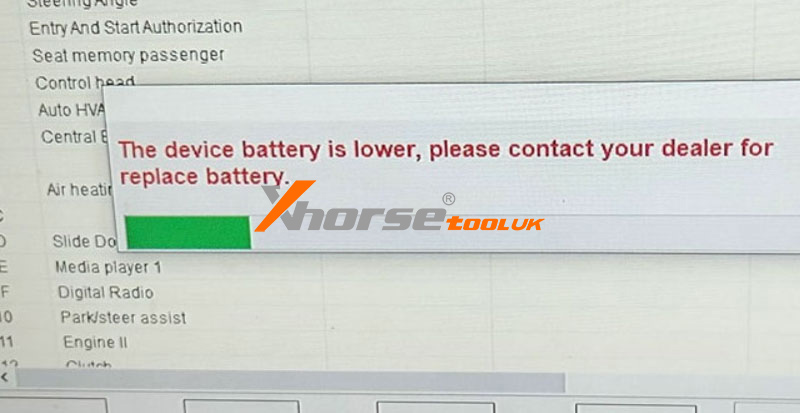
26.11.2025.Problem: I've been using the Xhorse VVDI2 for 3 years, but it has been giving up with a warning recently: "The device battery is low, please contact your dealer for battery replacement."
This doesn't mean your device is faulty or needs to be sent back. In most cases, the battery can be replaced easily - and you can do it yourself.
Battery Type
The VVDI2 uses a standard CR2450 coin cell battery.
How to Replace the VVDI2 Battery Yourself?
Important: Always use an external supply before and during battery replacement. Never remove the old battery first.
1. Prepare External Power
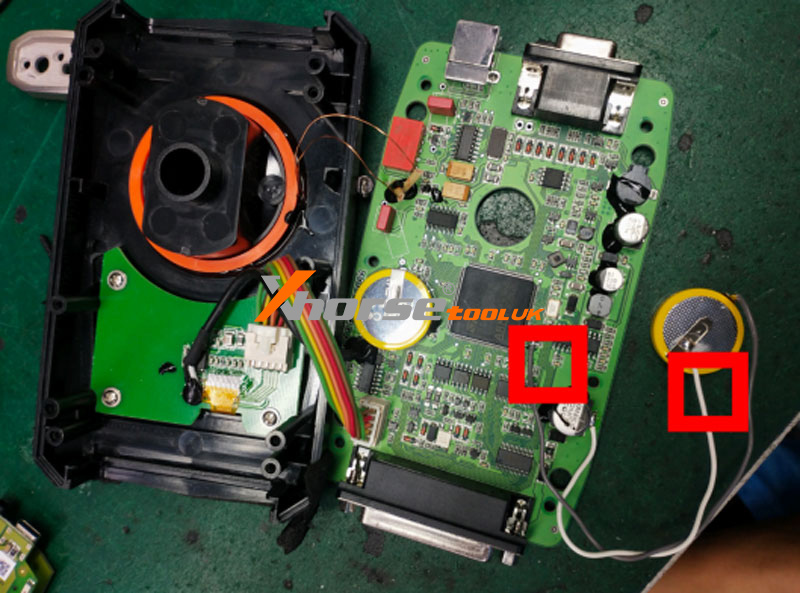
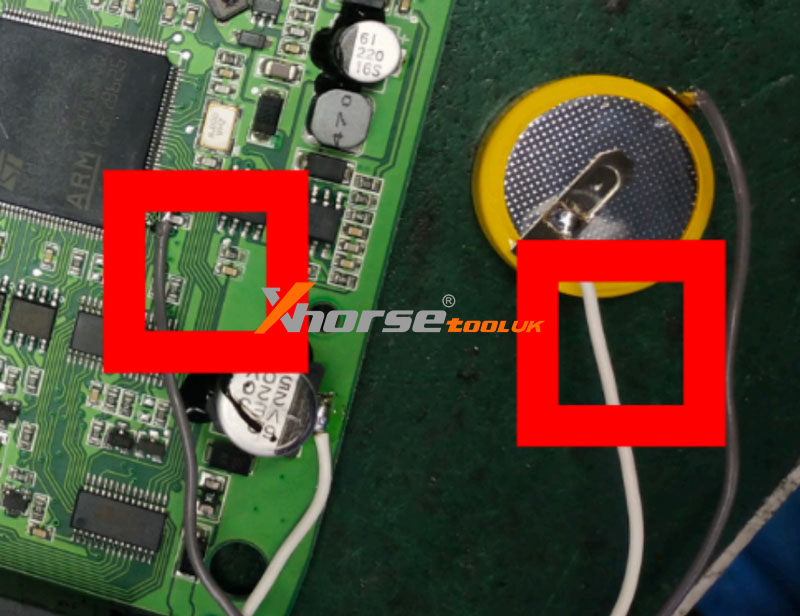
Grey wire = Positive (+)
White wire = Negative (-)
2. Solder the New Battery Before Removing the Old One
3. Remove the Old Battery
Once the new battery is securely soldered, carefully desolder and remove the old battery.
Final Check
After replacing the battery, disconnect the external power and turn on the VVDI2. The low battery warning should no longer appear, and your device will be ready for use.
Why Replace It Yourself?
lSave time and shipping costs
lEasy process with basic soldering skills
lUses a widely available battery (CR2450)
If you're uncomfortable with soldering, you can still contact your dealer for a replacement. But for most users, this is a quick and permanent fix.
www.xhorsetool.co.uk
Oznake: Xhorse VVDI2
komentiraj (0) * ispiši * #
How to Fix Xhorse VVDI Key Tool Plus" Update Failed Error 20_58"?
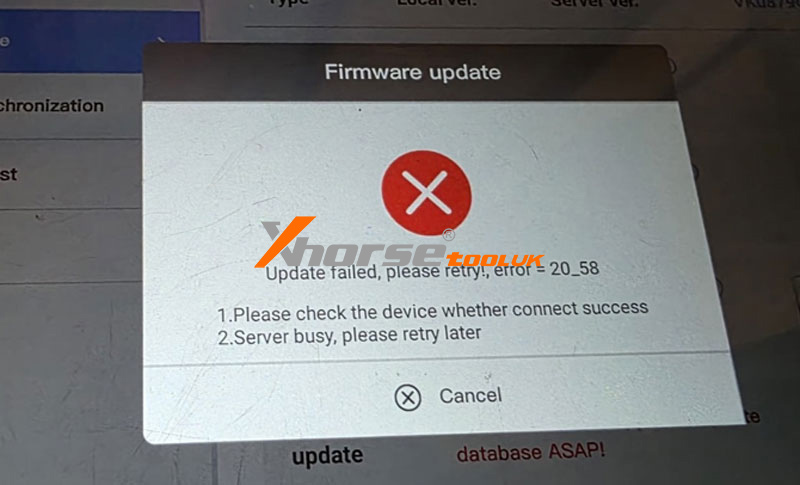
18.11.2025.Problem: The Xhorse VVDI Key Tool Plus Pad encounters a firmware update failure with the message "Update failed, please retry! error=20_58"
1. Please check whether the device whether connected successfully.
2. Server busy, please retry later.
What's the matter? Please help.
Solution
If the above steps do not resolve the issue, the device likely requires professional servicing.
Return the unit to the factory or an authorized service center for repair.
For more information, please visit: www.xhorsetool.co.uk
Oznake: vvdi key tool plus
komentiraj (0) * ispiši * #
NEW Xhorse Motorcycle Adapter for Honda & Yamaha
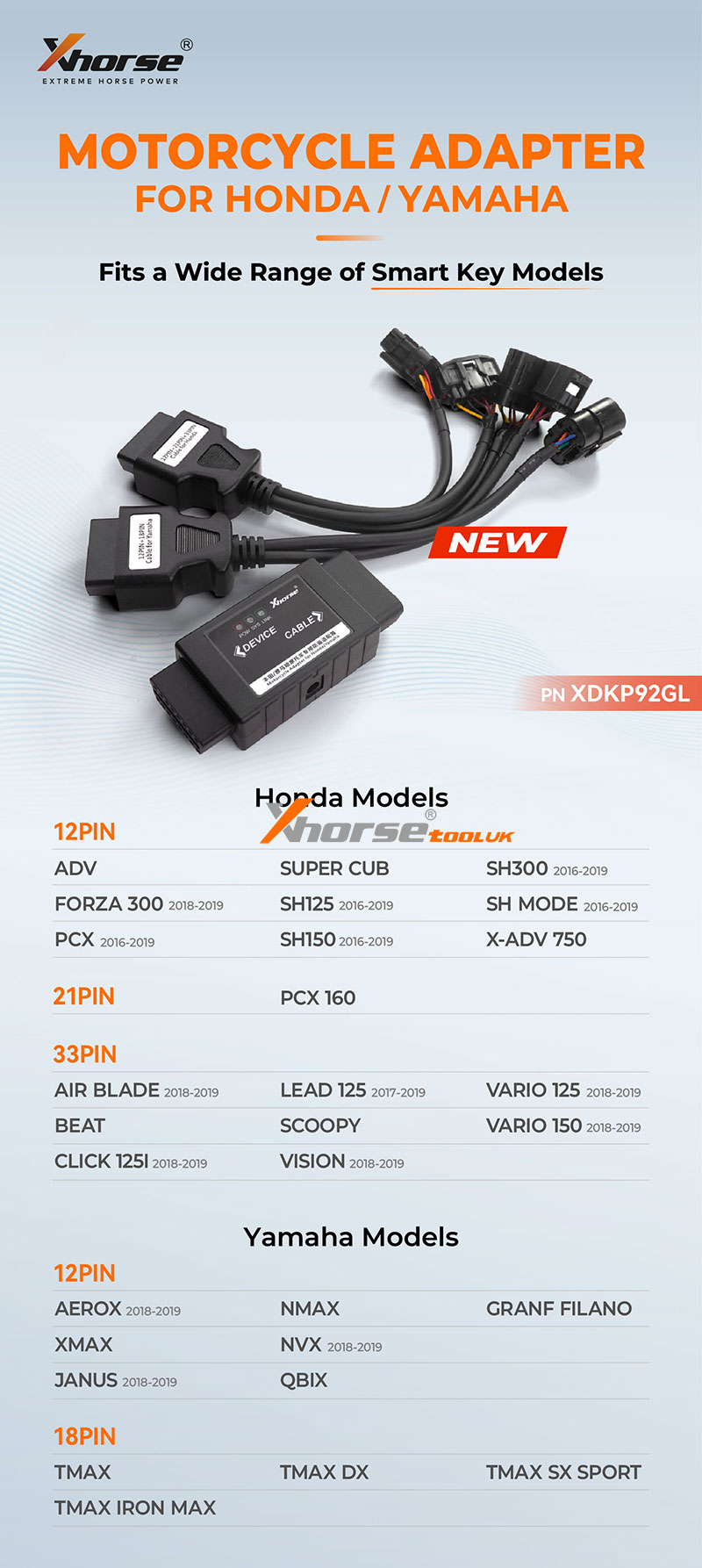
07.11.2025.Xhorse has released a brand-new Motorcycle Adapter designed specifically for Honda and Yamaha smart key systems. This adapter covers a wide range of motorcycle models and makes it easier than ever to connect, diagnose, and program smart keys efficiently.
Xhorse Motorcycle Adapter Features:
1. Compatible with both Honda and Yamaha smart key systems
2. Supports multiple connector types: 12PIN, 18PIN, 21PIN, and 33PIN
3. Ensures a stable connection and quick data transmission
4. Perfect for key programming, diagnostics, and maintenance tasks
Supported Honda Models
12PIN:
ADV
FORZA 300 (2018–2019)
PCX (2016–2019)
SUPER CUB
SH125 (2016–2019)
SH150 (2016–2019)
SH300 (2016–2019)
SH MODE (2016–2019)
X-ADV 750
21PIN:
PCX 160
33PIN:
AIR BLADE (2018–2019)
BEAT
CLICK 125i (2018–2019)
LEAD 125 (2017–2019)
SCOOPY
VISION (2018–2019)
VARIO 125 (2018–2019)
VARIO 150 (2018–2019)
Supported Yamaha Models
12PIN:
AEROX (2018–2019)
XMAX
JANUS (2018–2019)
NMAX
NVX (2018–2019)
QBIX
GRAN FILANO
18PIN:
TMAX
TMAX DX
TMAX SX SPORT
TMAX IRON MAX
Summary
The Xhorse XDKP92GL Motorcycle Adapter is a powerful and versatile tool for professionals working with Honda and Yamaha motorcycles. Whether you're programming a new smart key or performing maintenance, this adapter ensures seamless compatibility and reliable performance across multiple models and connector types.
www.xhorsetool.co.uk
Oznake: xhorse motorcycle adapter
komentiraj (0) * ispiši * #
Xhorse Audi BCM2 Adapter Tutorial for Key Tool Plus & Multi-Prog
04.11.2025.This tutorial will guide you through using the Xhorse Audi BCM2 Solder-Free Adapter to read vehicle D-flash and P-flash memory, as well as calculate IMMO data. The new version adapter supports all BCM2 series modules.
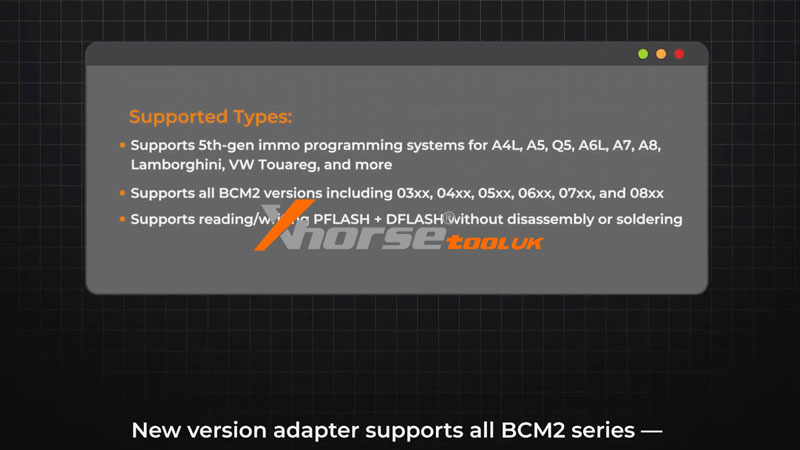
Preparation
lIdentify the correct adapter (Adapter A or Adapter B) for your BCM2 module
lPrepare VVDI Key Tool Plus or Multi-Prog Programmer
lVerify adapter pin alignment with the BCM2 module
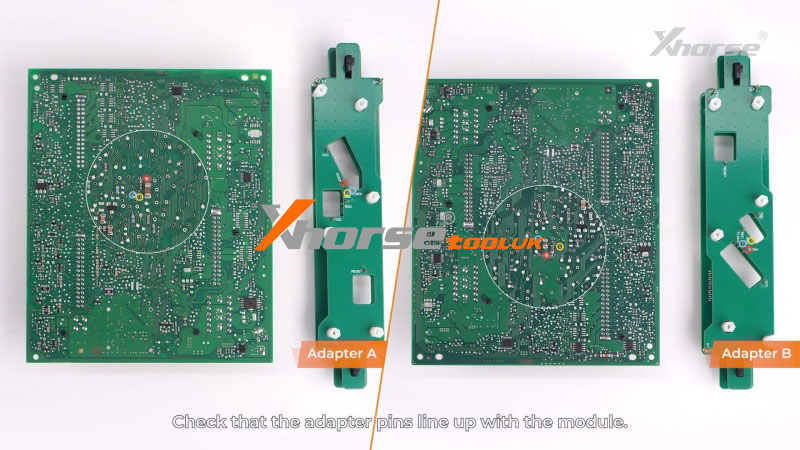
Step-by-Step Instructions
lAdapter Connection
1. Align the adapter with the Audi BCM2 module
2. Ensure proper positioning of FLMD, GND, and VRCG pins
3. Press both side buttons to lock the adapter in place
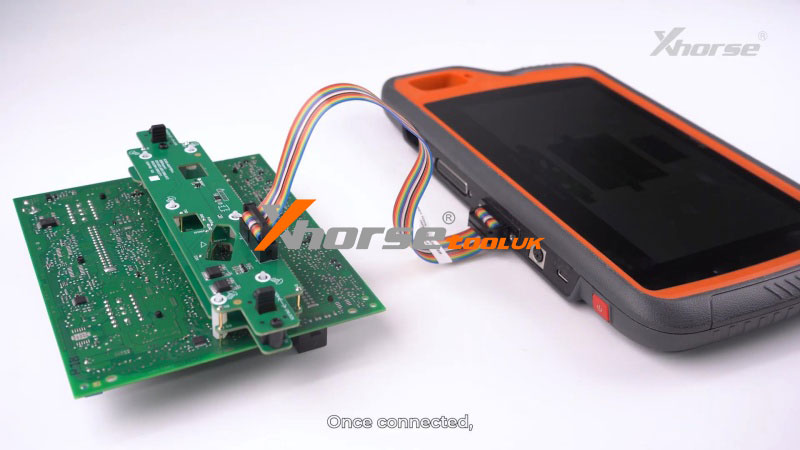
lData Reading Process
1. Connect the assembled adapter to Key Tool Plus using the adapter cable
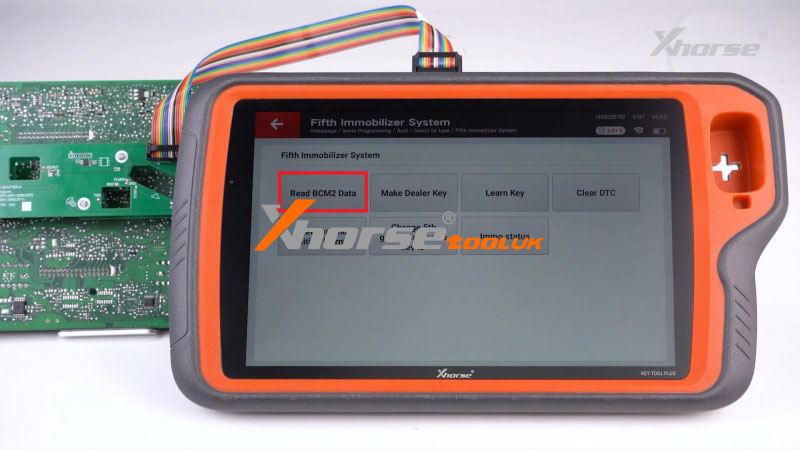
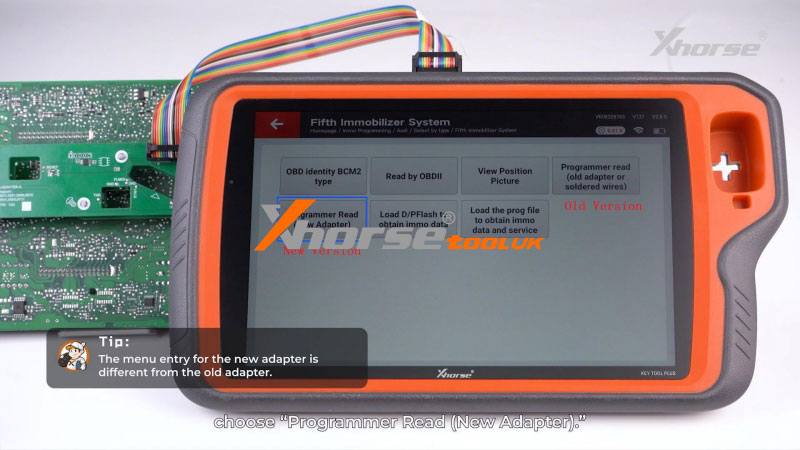
2. Immo programming >> Audi >> Select by type >> Fifth Immobilizer System >> Start programming >> Read BCM2 Data >> Programmer Read(New Adapter)
*The old version adapter requires entering the "Programmer read(old adapter or soldered wires)" menu.
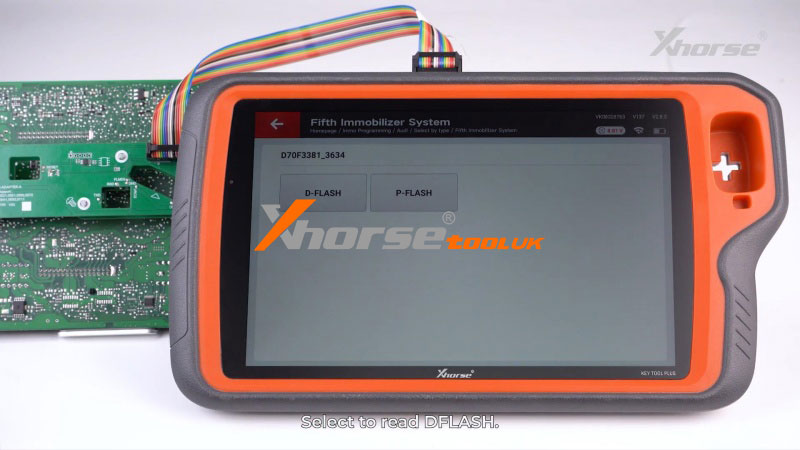
3. Choose to read "D-flash" and follow the on-screen instructions
4. After successful reading, proceed to read P-flash
lObtaining IMMO Data
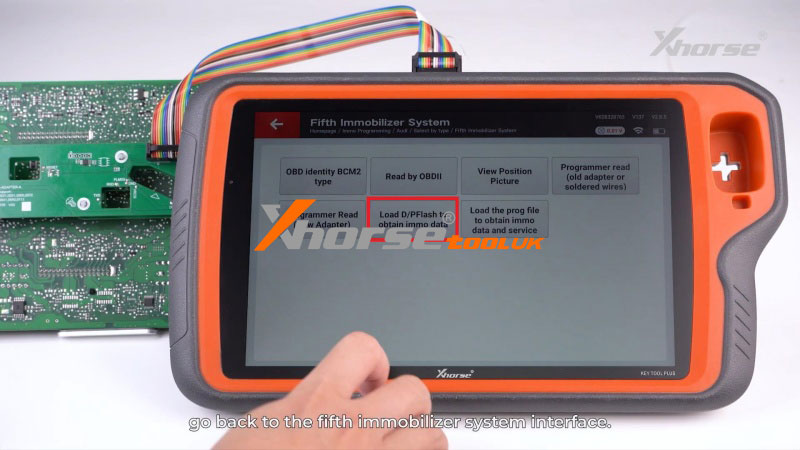
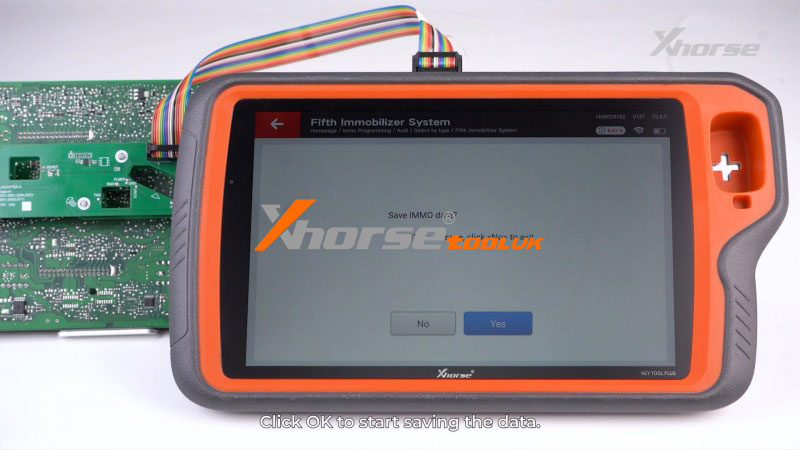
1. Return to the 5th immobilizer system interface, click "Load D/P Flash to obtain immo data" to load the previously read files
2. The system will automatically calculate immobilizer data
3. Save the data to proceed with dealer key generation or key learning
Using MultiProg Programmer
For Multi Prog users:
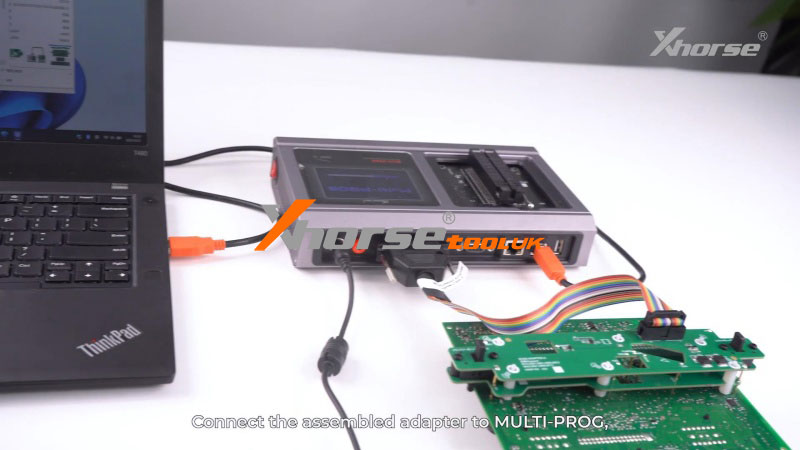
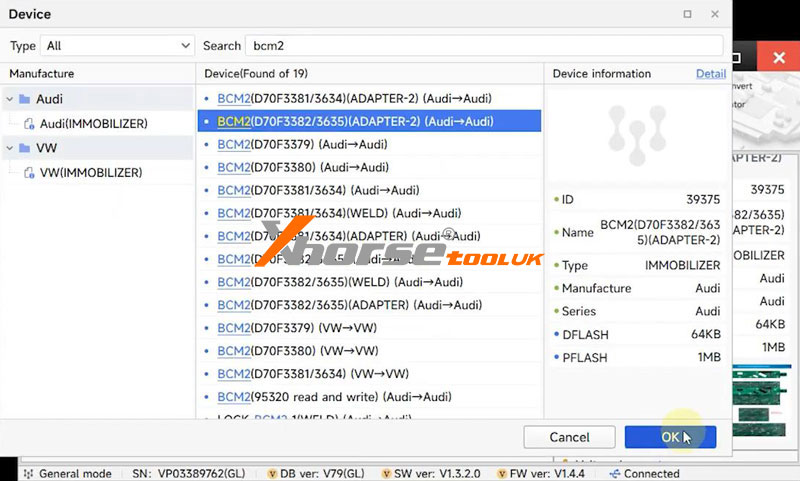
1. Use the dedicated Multi Prog adapter cable
2. Connect to the computer and supply 12V power to the programmer
3. Follow the same reading and saving procedure
After completing these steps, you can use Key Tool Plus to load the saved D/P-flash files and obtain immo data for key generation or key learning.
Video guides:
https://youtu.be/iD9QdqtdfPU
www.xhorsetool.co.uk
Oznake: xhorse audi bcm2 adapter
komentiraj (0) * ispiši * #