Wireless Remote vs. Super Remote: A Comparative Overview
01.12.2025.This guide outlines the key differences between the Wireless Remote and Super Remote, including their hardware, supported types, and usage notes.
1. Core Identification & Hardware
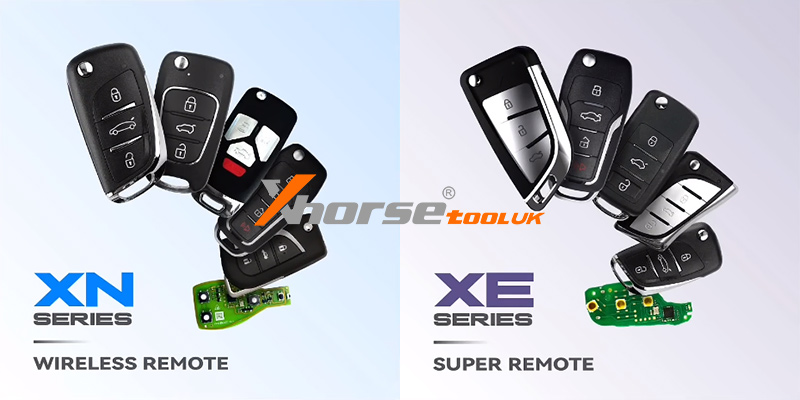
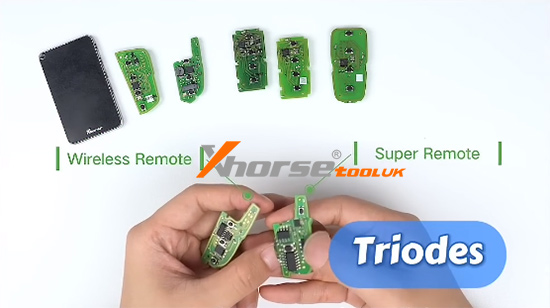
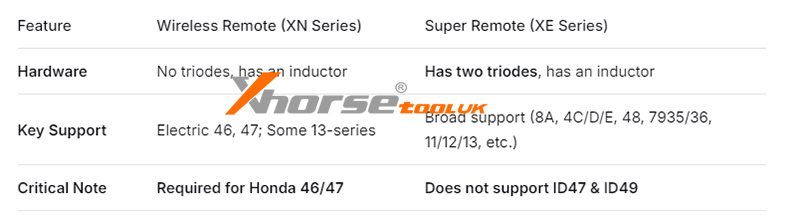
Wireless Remote: Corresponds to the XN series. It has an inductor on the back but does not contain triodes (transistors).
Super Remote: Corresponds to the XE series. It features two triodes (transistors) and also has an inductor on the back.
Common Requirement: For both remotes, the battery must be installed during the key generation process.

2. Supported Types & Applications
Wireless Remote
Supports:
Electric models: 46, 47, and others.
Some 13 transponder models.
Important Note: Honda models 46 and 47 specifically require generation with a Wireless Remote.
Super Remote
Supports a wide range of types, including:
8A (Toyota H / Hyundai 8A, cloneable)
8C (Haima)
8E (Honda)
4C (Corolla)
4D (60, 63, 70, 80, 83, 72G, 67, 69)
4E (64)
48 (VW, Honda, etc.)
7935 (33, 40, 41, 42, 43, 44)
7936 (46)
11, 12, 13
Important Note: It does not support ID47 and ID49.
Summary of Key Differences:
For more information, visit: www.xhorsetool.co.uk
Oznake: xhorse remote key
komentiraj (0) * ispiši * #
Xhorse XSBTK0EN Bluetooth Smart Key - FAQs & Troubleshooting
27.05.2025.Get the most out of your XHORSE XSBTK0EN Bluetooth Smart Key. Fix unresponsive auto-lock, set custom commands, bind multiple phones, and more. Dive into our FAQs to master your smart key's full potential!
Q: Are the Auto Lock/Unlock Features Not Responsive?
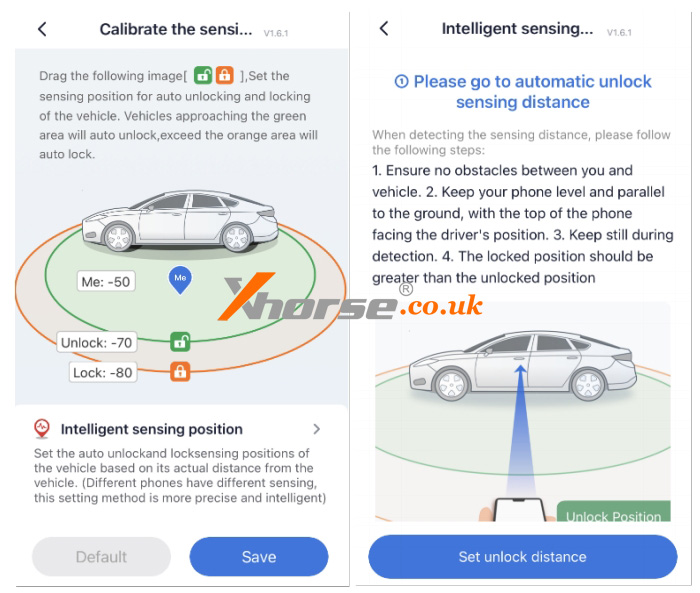
A: As shown in the picture, if the auto lock/unlock feature is not responsive, you can enable the [Auto Lock/Unlock] feature to calibrate the sensing position.
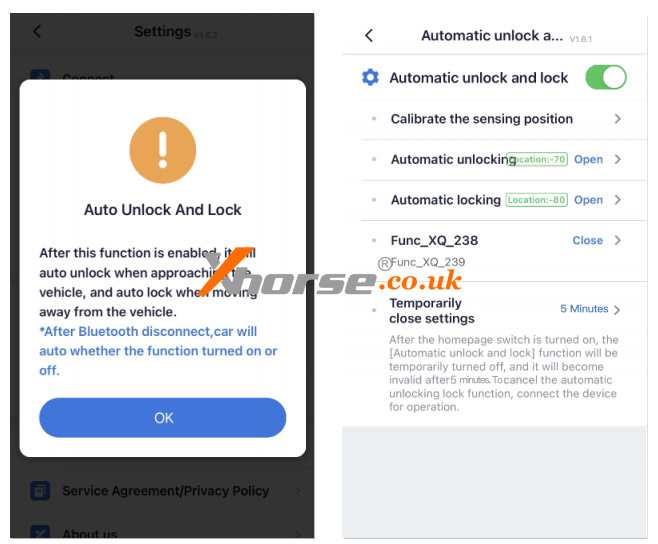
The APP provides two methods for calibrating the sensing position:
1. Manual adjustment: As shown in the picture, manually drag the lock and unlock points to set the desired positions.
2. Intelligent sensing: as shown in the picture, calibrate the parameters based on the actual device-vehicle distance.
Q: How to Set Custom Key Combinations?
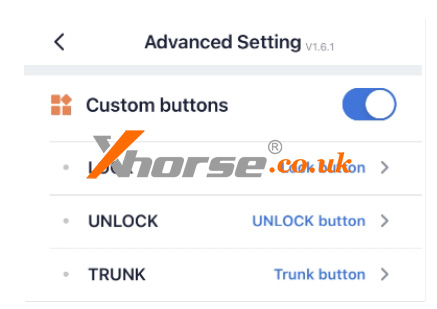
If the vehicle has special functions(e.g., hold lock to raise windows, double-click trunk to open, press and hold lock to remote start), you can set custom key combinations through [Advanced Settings - Custom buttons]. This allows the app to perform these special functions. Refer to the on-screen instructions for specific adjustment methods, as shown in the picture.
Q: How to Bind Multiple Phones?
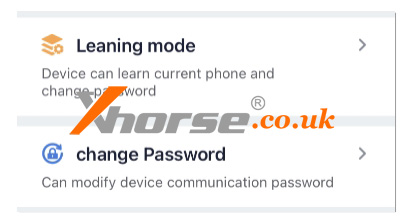
Xhorse Bluetooth Digital Smart Key supports binding up to 12 phones. Click [Advanced Setting - Learning Mode - Enter Learning Mode] to add a new phone.
Additionally, you can reset the Bluetooth connection password via [Change Password] as shown in the picture.
Q: Is There a Maintenance Mode?
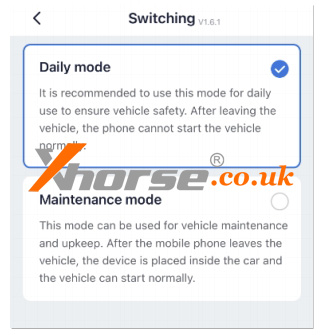
Bluetooth digital smart key supports setting a maintenance mode, which temporarily disables phone detection. Click [Advanced Setting - Switching Mode - Maintenance Mode]. In this mode, the vehicle can unlock/lock doors and start without detecting the phone. This is typically used for scenarios such as car washing. As shown in the picture.
Q: Can the Smart Key Part Inside the Device Be Used for Emergency Starting?
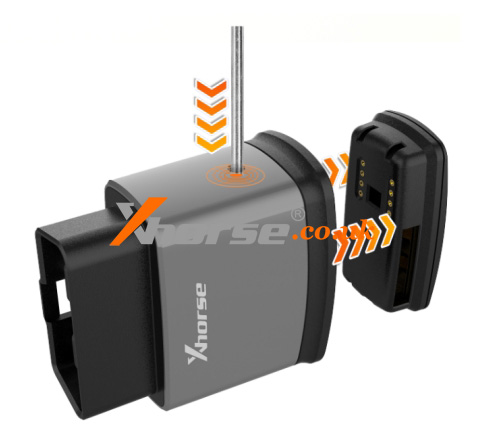
The device includes a physical emergency key. Under normal circumstances, the functionality of this emergency key is restricted and remains in a protected state for security purposes. Even if removed, if cannot be used directly.
www.xhorse.co.uk
Oznake: xhorse remote key
komentiraj (0) * ispiši * #
3 Methods to Disassemble Xhorse VVDI Remote Keys
15.04.2025.This is a tutorial on how to disassemble Xhorse VVDI Remote Keys. They are divided into 5 types: Super Remote XE Series, Smart Remote XS Series, Wired Remote XK Series, Wireless Remote XN Series, and Special Remote PCB Exclusivly XZ Series.
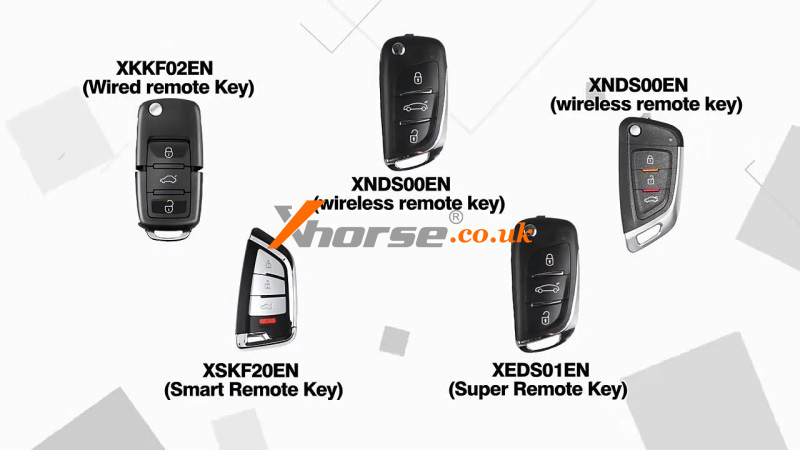
The removal of VVDI remote keys is easy. There are 3 methods:
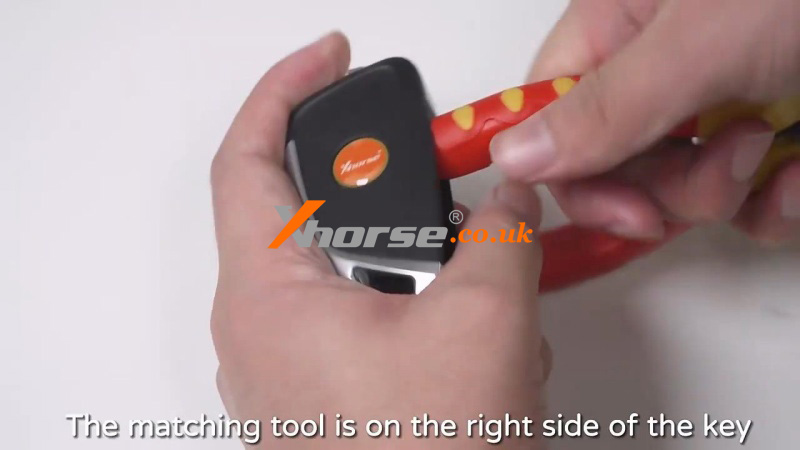
1) The matching tool is on the right side of the key. Stuff the tool and push up until the back of the key pops out.
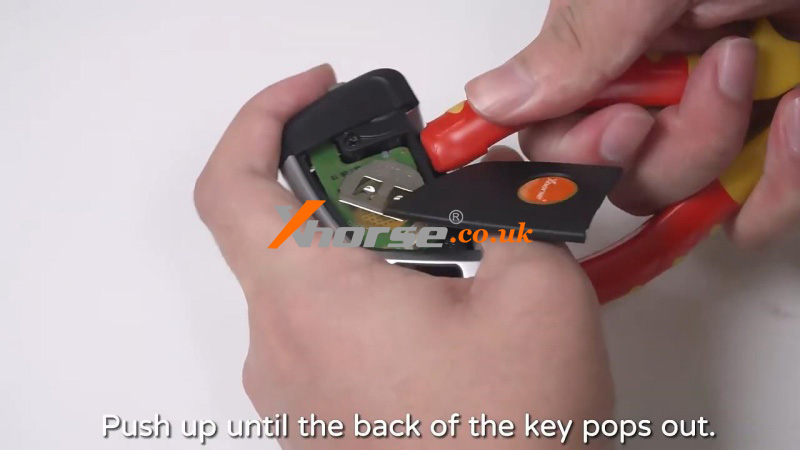
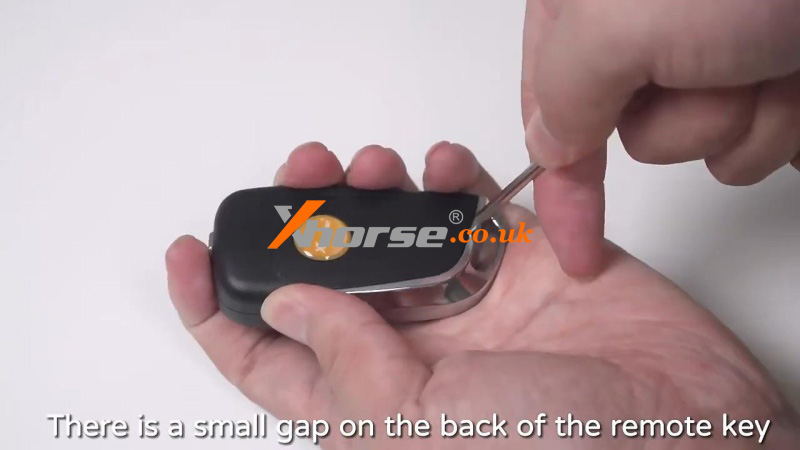
2) There is a small gap on the back of the remote key. Use a tool to pry up the back shell in the gap.
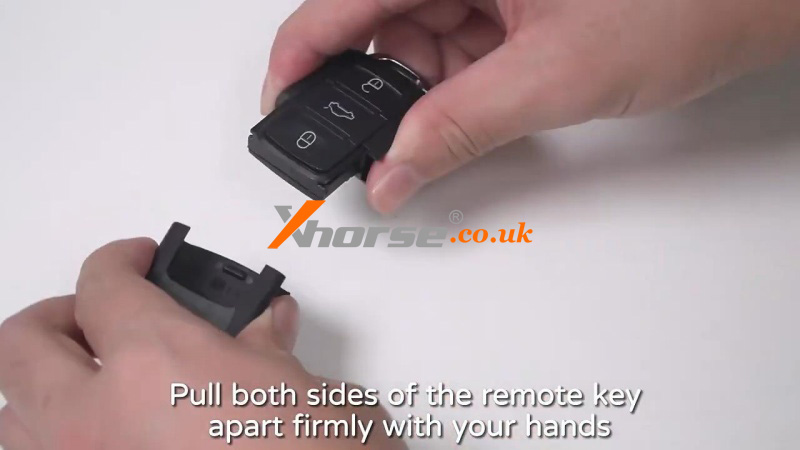
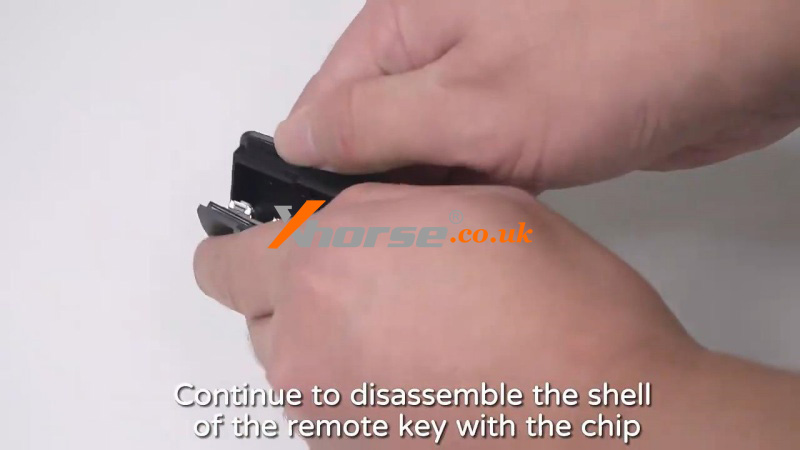
3) Pull both sides of the remote key apart firmly with your hands. Take out the shell of the other half of the remote key. Continue to disassemble the shell of the remote key with the chip.
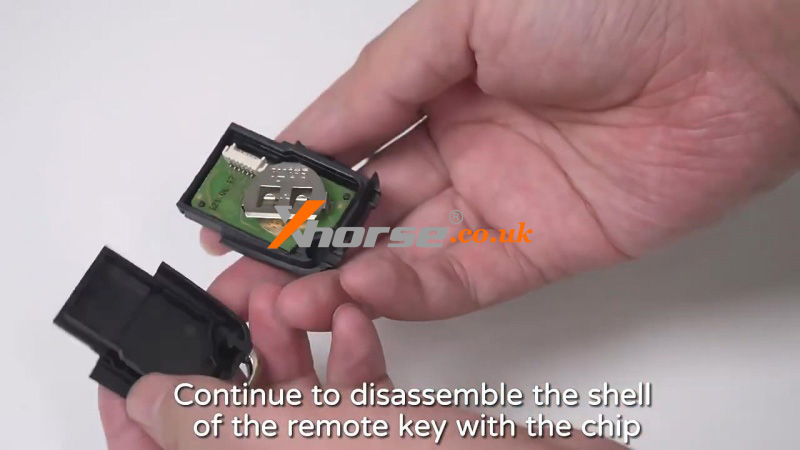
We can see from the image that the front and back of the internal chip for the 5 types are different.
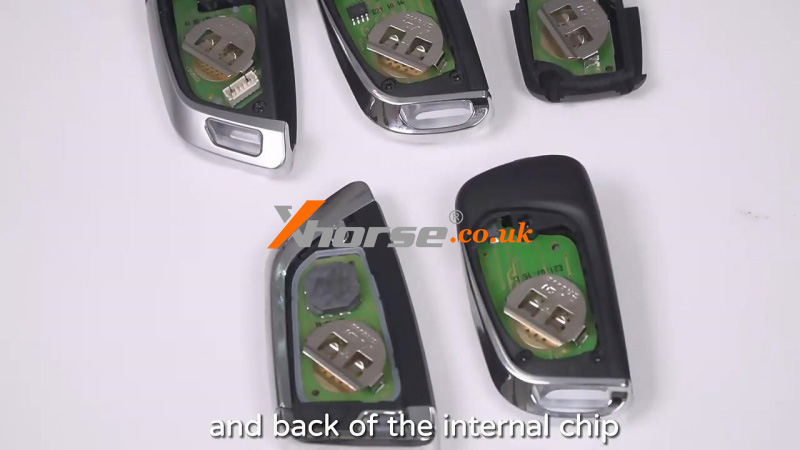
Of course, they have different connection methods with other Xhorse devices: wireless and wired.
www.xhorse.co.uk
Oznake: xhorse remote key
komentiraj (0) * ispiši * #
Xhorse XZ/XS/XM38 Series Smart Key New Released
27.02.2024.Xhorse has released a new XZ Series PCB Board, XS Series XSDFX2EN Smart Key, and XSSBR0EN XM38 Smart Key recently. Below we'll introduce the application range of these keys.
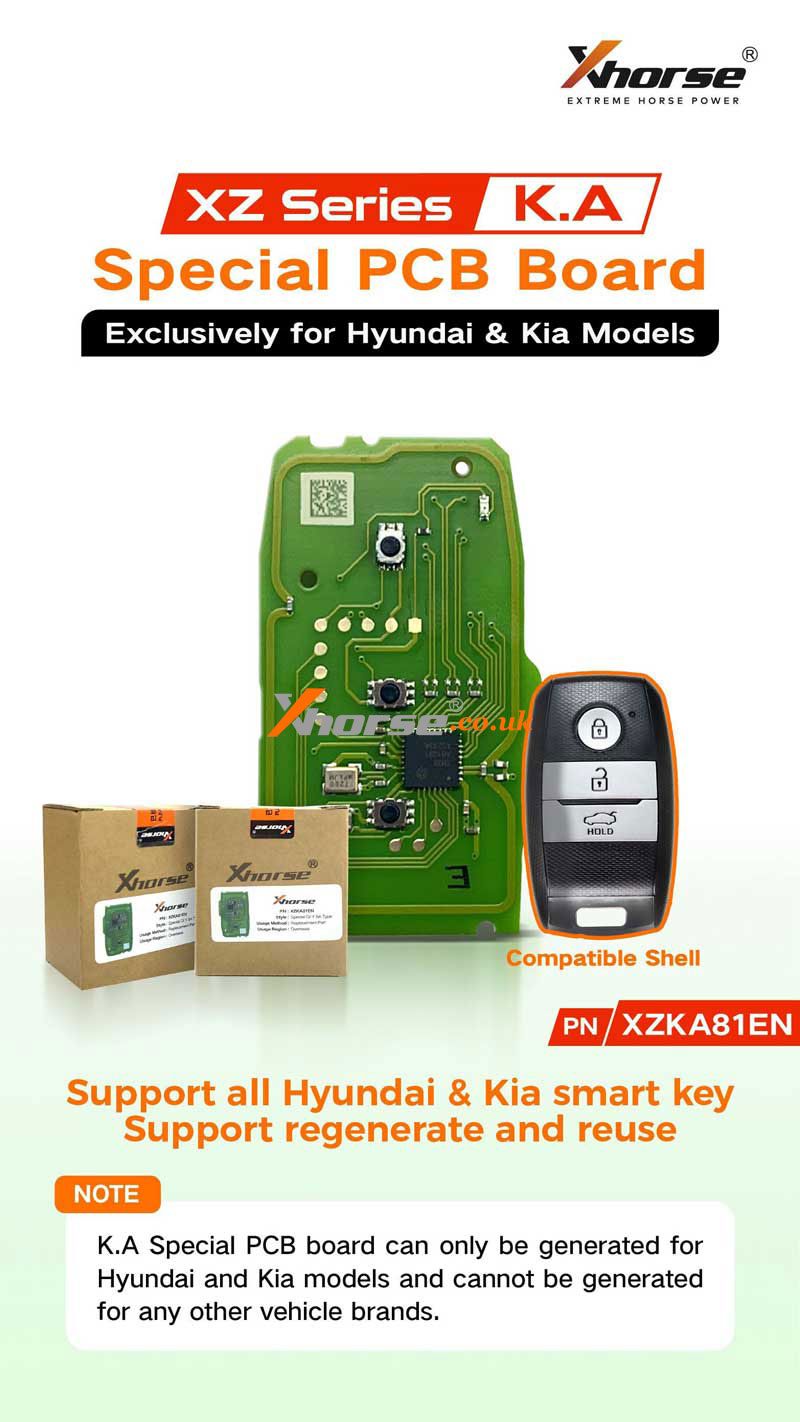
XZ series K.A Special PCB Board
PN. XZKA81EN
It's exclusively designed for Hyundai & Kia models and supports all Hyundai & Kia smart keys to regenerate and reuse.
NOTE
K.A. special PCB board can only be generated for Hyundai and Kia models and cannot be generated for any other vehicle brands.
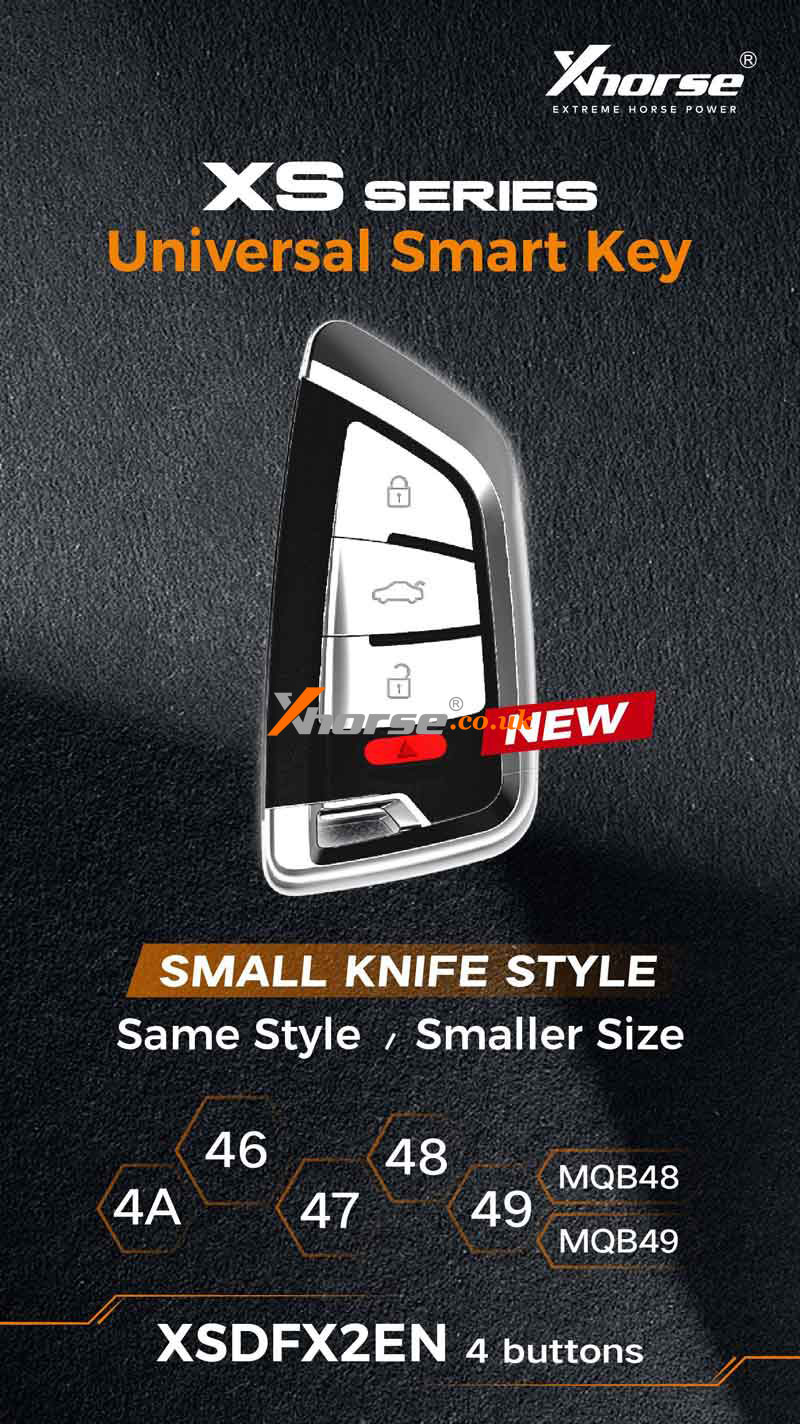
XS Series Universal Smart Key
PN. XSDFX2EN
It's designed in the same 4-button knife style but with a smaller size. Supports MQB48, MQB49, 4A, 46, 47, 48, 49 key type.
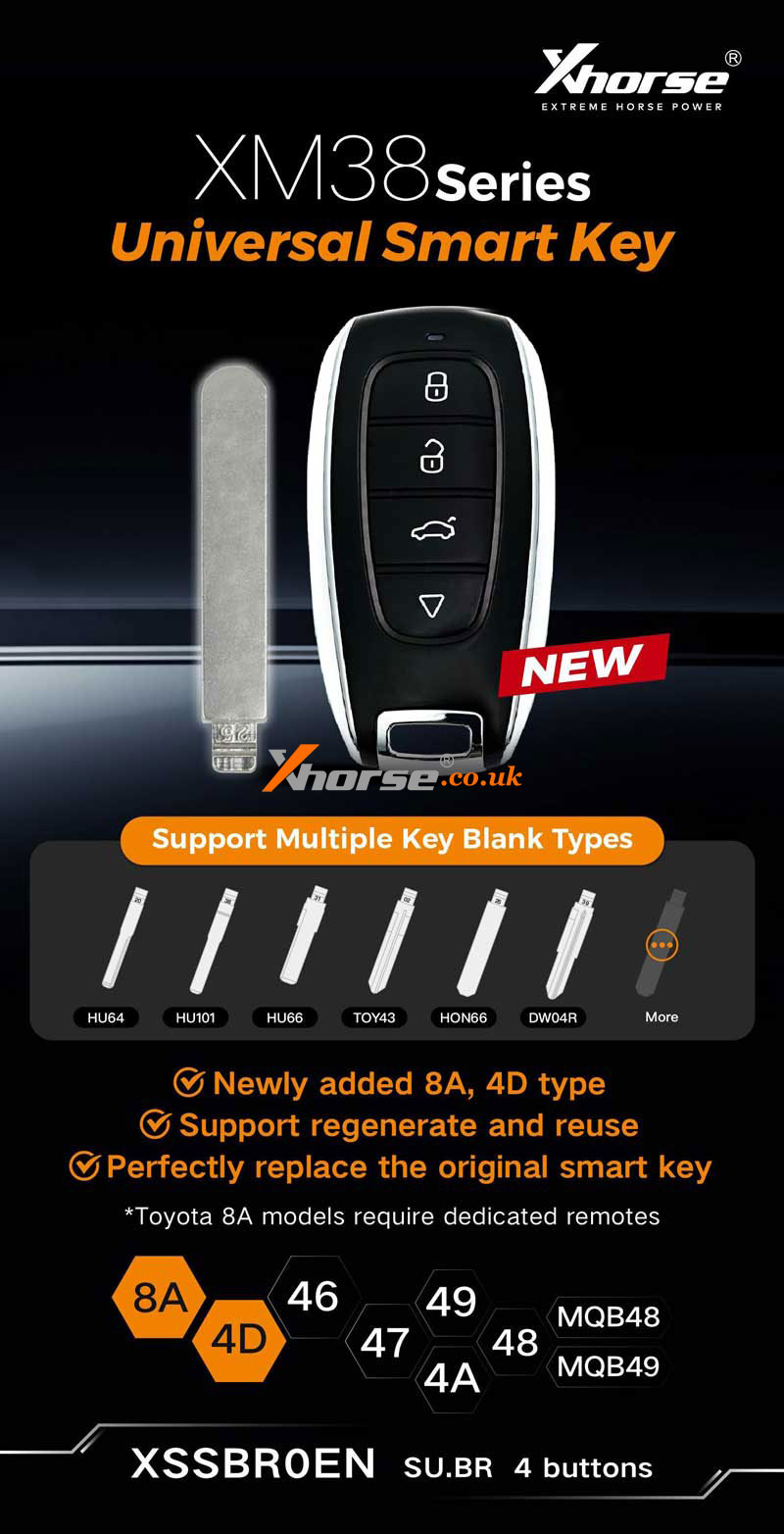
XM38 Series Universal Smart Key
PN.XSSBR0EN, SU.BR 4-buttons.
It's a newly added 8A, 4D type to support regeneration and reuse. It can perfectly replace the original smart key.
Support multiple key blank types: HU64, HU101, HU66, TOY43, HON66, DW04R, etc.
Support MQB48, MQB49, 8A, 4D, 46, 47, 48, 49, 4A key type.
www.xhorse.co.uk
Oznake: xhorse remote key
komentiraj (0) * ispiši * #
5 Quick Tips to Use Xhorse VVDI Remote Keys
20.07.2023.Here we provide 5 quick tips for using Xhorse VVDI Remote Keys, including detecting the remote, point collection, query remote usage record, VVDI smart remote clone, and smart key customization. All these tips can apply to VVDI key tools such as Mini Key Tool, Key Tool Max, Key Tool Max Pro, Key Tool Plus Pad, etc.
Check the video to learn:
https://youtu.be/PCdLrGcnDpI
Detect Remote
There are many types of VVDI remotes, and here's one way to help you distinguish them quickly. We're using the Mini Key Tool as an example.
How to detect remote?
1. Connect the VVDI tool to your smartphone.
2. Go to: Special function >> VVDI remote function >> Detect remote
3. Place a remote and start detecting. It'll show all the info on the remote.
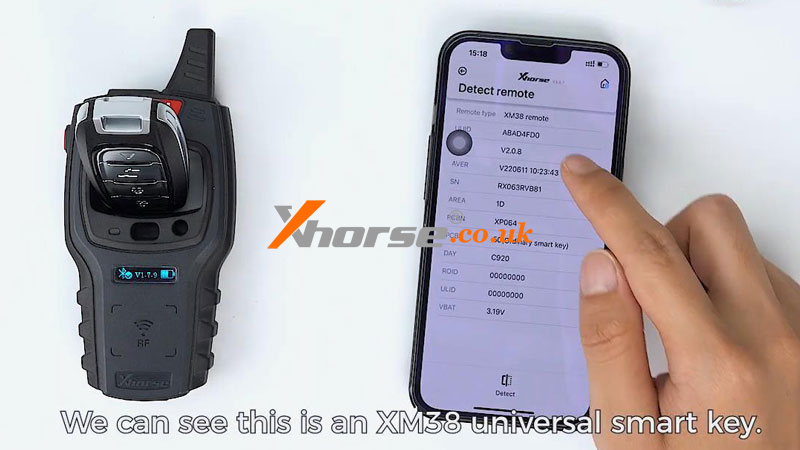
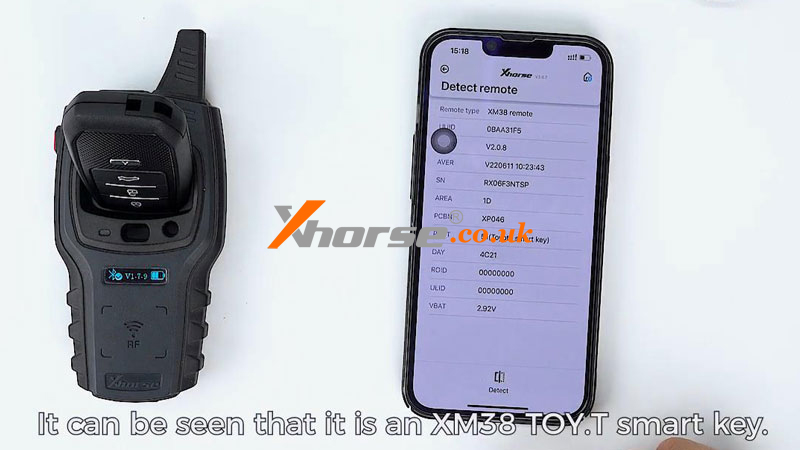
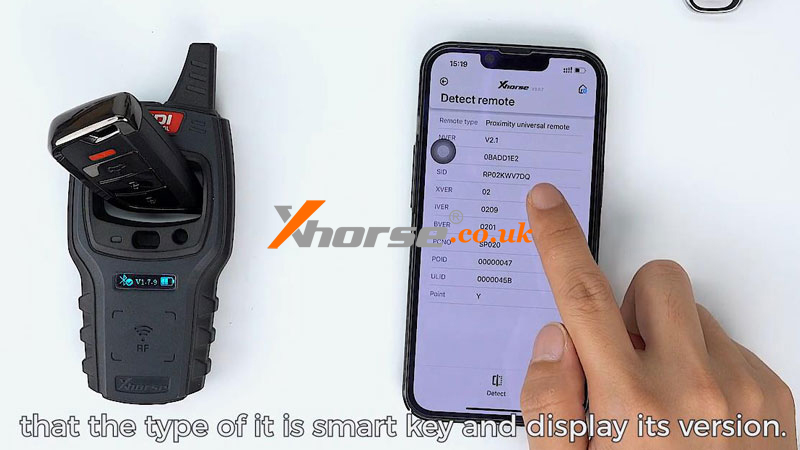
We can see this is an XM38 Universal Smart Key. Detect another remote, it can be seen it's an XM38 TOY.T Smart Key. If it's an NXP smart key, the detection result will show the type of smart key and display its version.
Point Collection
*Note: bonus points are only available for the first successful generation.
How to collect bonus points?
1. Generate the required option with VVDI NXP remote.
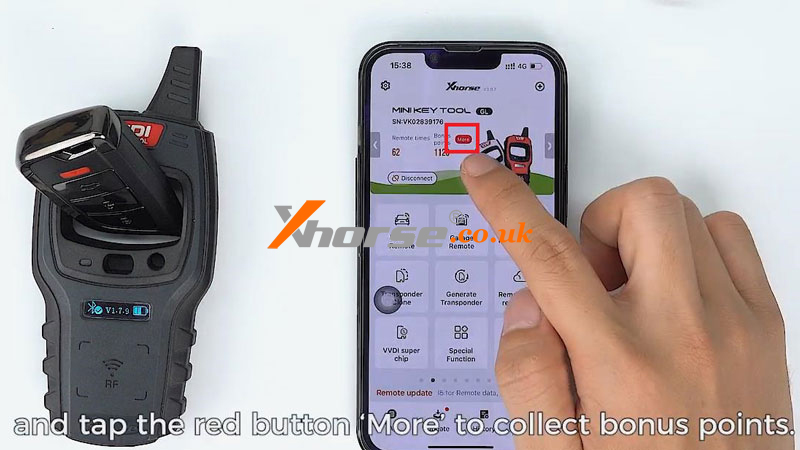
2. Return to the home page, and tap the red button "More" to collect bonus points.
How many points are for generating different remotes?
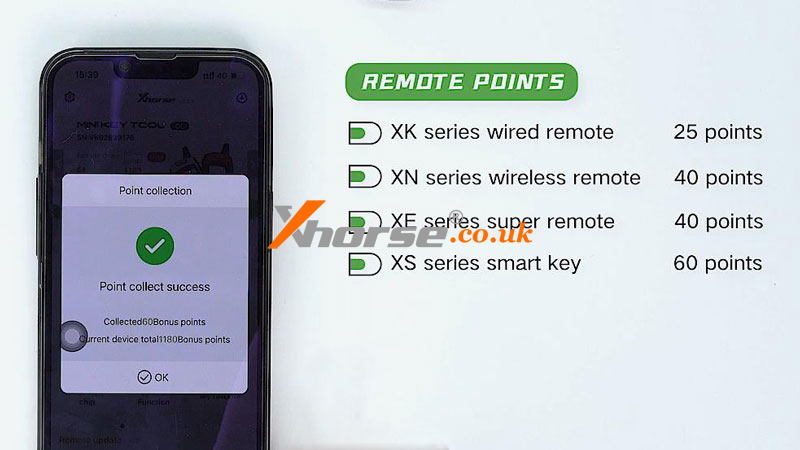
Generating wired remotes will give you 25 points. Generating wireless remotes and super remotes will award you 40 points. Generating universal smart keys will give you 60 points. But there's no point in a dedicated remote generation. For example, generating an XM38 TOY.T smart key won't generate any points.
Query Remote Usage Record
Operation Path
Special function >> VVDI remote function >> Query remote usage record
How to use query remote usage records?
Pace the remote as shown and then we can query the usage record of the remote.
For example, put in a Knife style universal smart key, and we can check when the points were collected, when the remote was generated, and which option it was previously generated to.
VVDI Smart Key Clone
Operation Path
Special function >> VVDI remote function >> VVDI smart key clone
How to clone VVDI smart key?
This function is used when exchanging remotes without key learning.
For example, we want to use the KE.LSL universal key to generate the remote type which the Knife style universal key uses.:
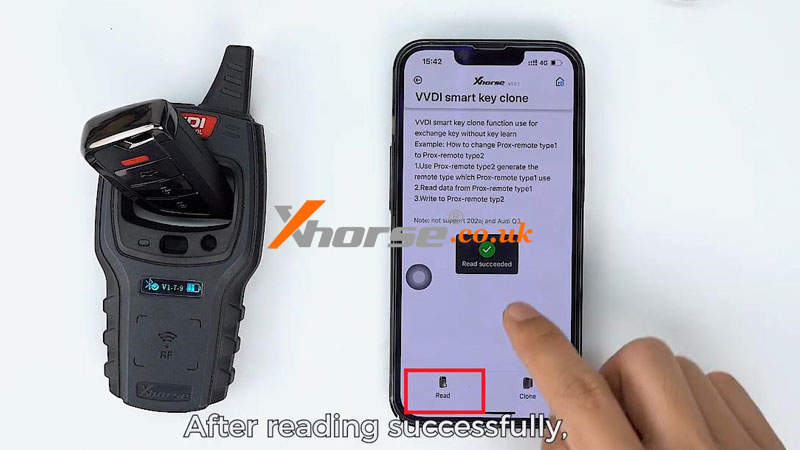
Read the data of the matched Knife style universal smart key.
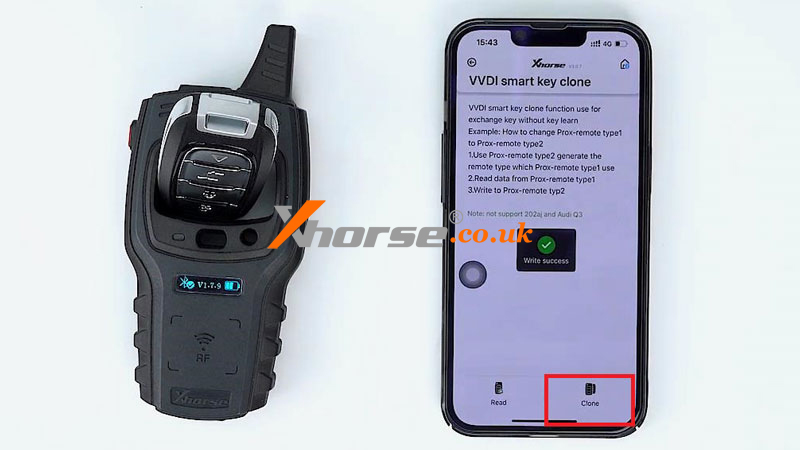
After reading successfully, place the KE.LSL universal smart key into the coil and tap "Clone".
Wait for the write to succeed. At which point the KE.LSL universal smart key will be used directly without matching.
Note: 2 keys cannot be used at the same time, otherwise their signals will interface with one another, which may lead to control failure. If you need to make 2 keys, both keys will need to be matched.
Smart Key Customization
Operation Path
Special function >> VVDI remote function >> Smart key customization
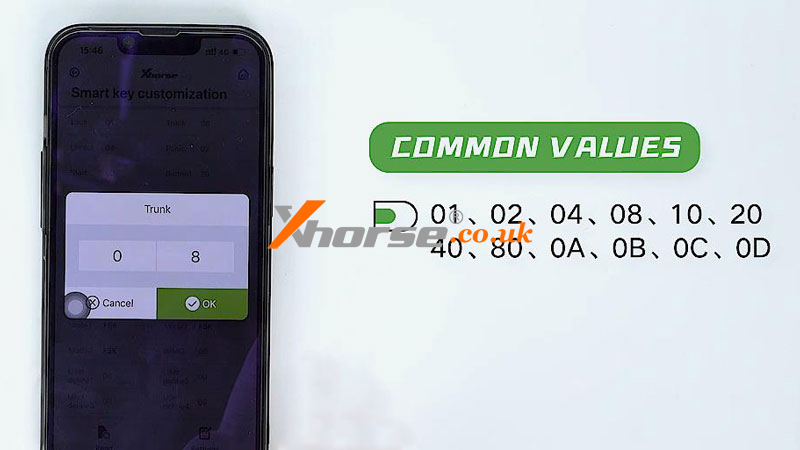
Let's take the Knife style universal smart key as an example. Its Lock button and Unlock button are opposite. And the Trunk button is invalid. In this case, the remote buttons can be adjusted through the customization function.
How to customize the key button?
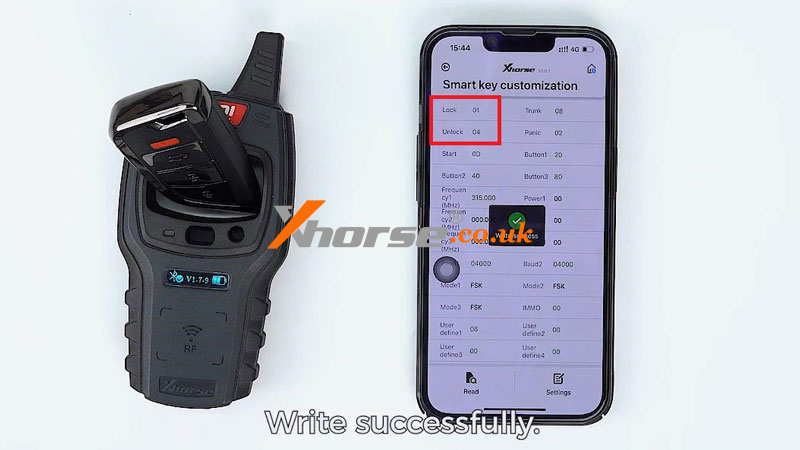
1. Read the data, the Lock value is 04 and the Unlock value is 01.
2. Change the Lock value to 01 and the Unlock value to 04. Tap "Settings", and write successfully.
3. Then read again, the Lock and Unlock buttons have been adjusted properly.
How to solve the Trunk button invalid problem?
1. Now the value of the Trunk is 08. And the common values include 01, 02, 04, 08, 10, 20, 40, 80, 0A, 0B, 0C, 0D. Let's try to input these values one by one.
2. Perform a test after each input until the Trunk key is valid. If all values are invalid, please contact our technical support on the Xhorse App.
Technical Support
www.xhorse.co.uk
Oznake: xhorse remote key
komentiraj (0) * ispiši * #